|
How to convert Video to MPEG ?
Total Video Converter is a powerful Video to MPEG converter which can fast convert videos to MPEG with high quality. The Video to MPEG Converter supports batch conversion and setting relative output parameters before starting to convert videos to MPEG.
As a full-feature converter software,Video to MPEG converter also supports other popular video and audio formats including mp4, psp, mpeg, 3gp, flv, mov, asf, wav, wmv, mp3, aac, mmf etc. Meanwhile, it supports for converting and burning video to HD formats like H.264 TS, Mpeg-2 TS, WMV-HD, MKV-HD, DivX-HD, Divx-HD, MOV-HD, FLV-HD and MP4-HD.
Here below will show you the step-by-step guide to convert video to MPEG formats.
Step 1 Free Download Total video Converter Or Total Video Converter for Mac. Then install and lauch tvc
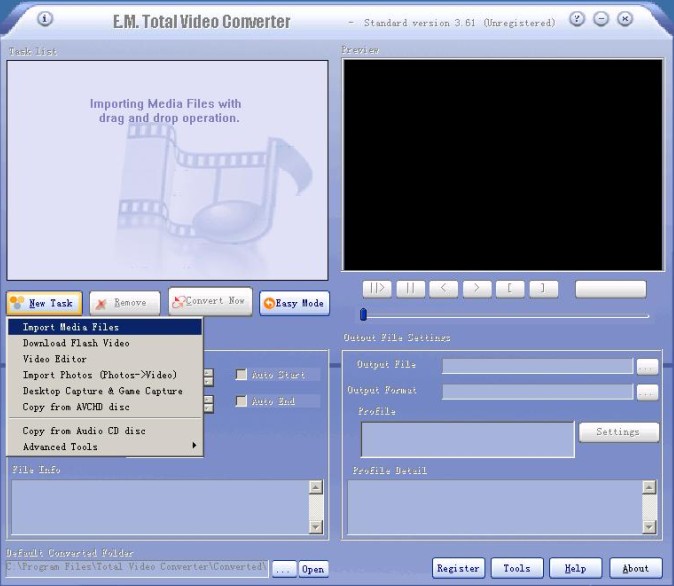
Step 2 Load the video files
Click the “New Task” button, and import the video files you want to convert to the program.Video to MPEG converter supports batch conversion, so you can load several video files at one time.
Tips: you can preview the video files in the right preview monitor.
Step 3 Select output formats.
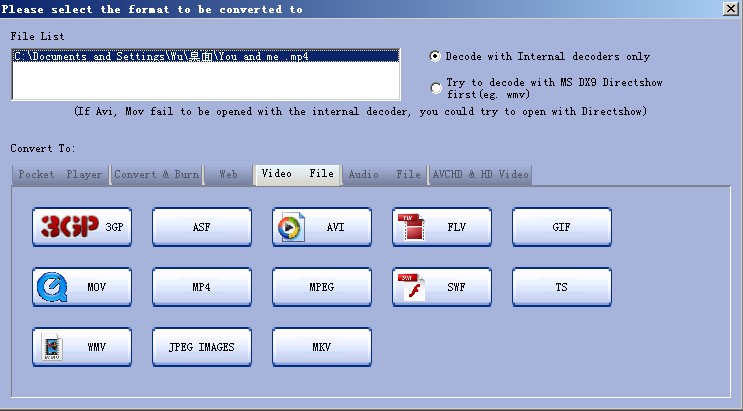
After loaded the files, then it will pop a “Please select the format to be converted to” window which allows you to select various output formats, here we will select “video file” and then click “MPEG” button.
Tips: The Video to MPEG Converter allows setting different output formats according to different files.
Step 4 Customize output parameters.
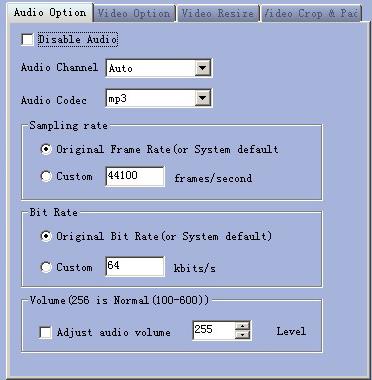
The Video to iPad Converter allows you to customize the “Filter” and “Settings” on the left top corner. It helps you set relative “Audio Option”, “Video Option”, “Video Resize” and “Video Crop& pad”.
Step 5 Choose the output destination
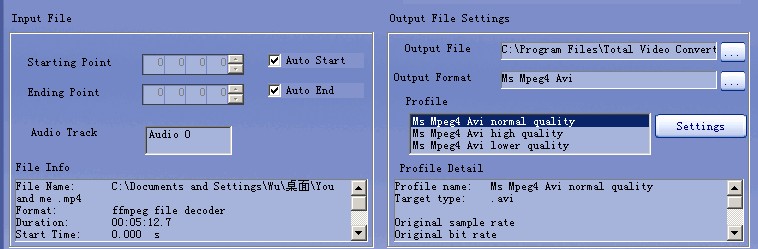
This step you will choose the output file destination below the preview monitor and setting “profile”, here you can select normal quality, high quality and lower quality.
Step 6 Start the Videos to MPEG conversion
OK, just click the “Convert Now” button. This process may take quite a bit of time and disk space depends on the quality and length of the video. Please wait it patiently.
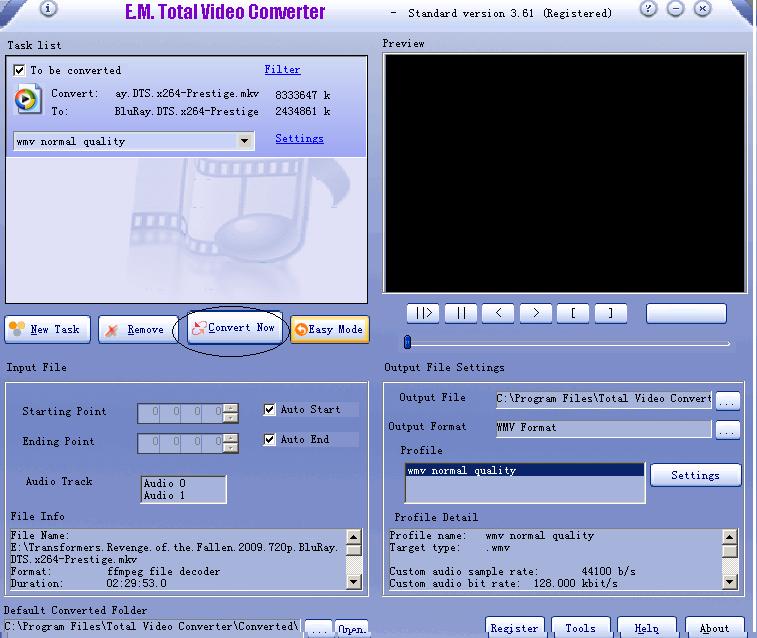
converting to MPEG
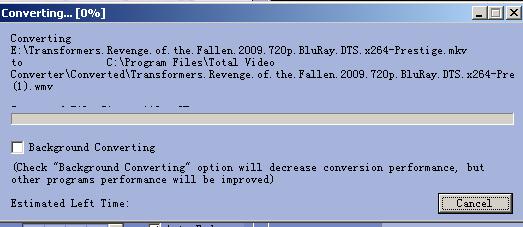
Step 7 After converting, you will get the video for MPEG.
Get more information at: TVC.
Total Video Converter supports reading the following file formats:
Convert Any Video Formats:
Convert video from Real Video Rmvb (.rm,.rmvb)
Convert video from MPEG4 (.mp4)
Convert video from 3gp (.3gp, 3g2)
Convert video from Game Psp (.psp)
Convert video from MPEG1 (.mpg, mpeg)
Convert video from MPEG2 PS (.mpg, mpeg, vob)
Convert video from MPEG2 TS (DVB Transport Stream)
Convert video from DIVX (.divx)
Convert video from Ms ASF (.asf, .wmv)
Convert video from Ms ASF (.asf, .wmv)
Convert video from Ms AVI (.avi)
Convert video from Macromedia Flash video FLV (.flv)
Convert video from Apple Quicktime (.mov)
Convert video from FLIC format (.fli, .flc)
Convert video from Gif Animation (.gif)
Convert video from DV (.dv)
Convert video from Matroska (.mkv)
Convert video from ogm (.ogm)
Convert video from Video Formats Dx9 Directshow can open
Convert Any Audio Formats:
Convert audio from CD audio (.cda)
Convert audio from MPEG audio (mp3, mp2)
Convert audio from Ms WAV (.wav)
Convert audio from Ms WMA (.wma)
Convert audio from Real Audio (.ra)
Convert audio from OGG (.ogg)
Convert audio from Amr audio (.amr)
Convert audio from AC3 (.ac3)
Convert audio from SUN AU format (.au)
Convert audio from Macromedia Flash embedded audio (.swf)
Convert audio from Audio Formats Dx9 Directshow can open
Total Video Converter supports generating the following file formats:
Total Video Formats Converter:
Convert to MPEG4(.mp4) video
Convert to 3gp(.3gp, 3g2) video
Convert to Game Psp (.psp) video
Convert to MPEG1 (.mpg, mpeg) video
Convert to NTSC, PAL DVD mpeg and Burn video to DVD disc
Convert to NTSC, PAL SVCD mpeg and Burn video to SVCD disc
Convert to NTSC, PAL VCD mpeg and Burn video to VCD disc
Convert to Ms Mpeg4 AVI (.avi) video
Convert to Divx AVI (.avi) video
Convert to Xvid AVI (.avi) video
Convert to H264 AVI (.avi) video
Convert to Mjpeg AVI (.avi) video
Convert to HuffYUV AVI (.avi) video
Convert to Swf Video (.swf) video
Convert to Flv Video (.flv) video
Convert to Gif Animation (.gif) video
Convert to Mpeg4 Mov (.mov) video
Convert to Apple Quicktime (.mov) video
Convert to DV (.dv) video
Convert to WMV (.wmv) video
Convert to HD Mpeg TS (.ts) video
Convert to ASF (.asf) video
Total Audio Formats Converter:
Convert to MPEG audio(mp3, mp2) audio
Convert to Ms WAV (.wav) audio
Convert to Ms WMA (.wma) audio
Convert to OGG (.ogg) audio
Convert to Amr audio (.amr) audio
Convert to AC3 (.ac3 audio )
Convert to SUN AU format (.au) audio
Convert to m4a (mp4 audio) audio
Convert to aac (aac audio) audio
Convert to mmf (mmf audio) audio
Convert to Flac (flac audio) audio
Get more information at: Total Video Converter.
Download Buy now
|