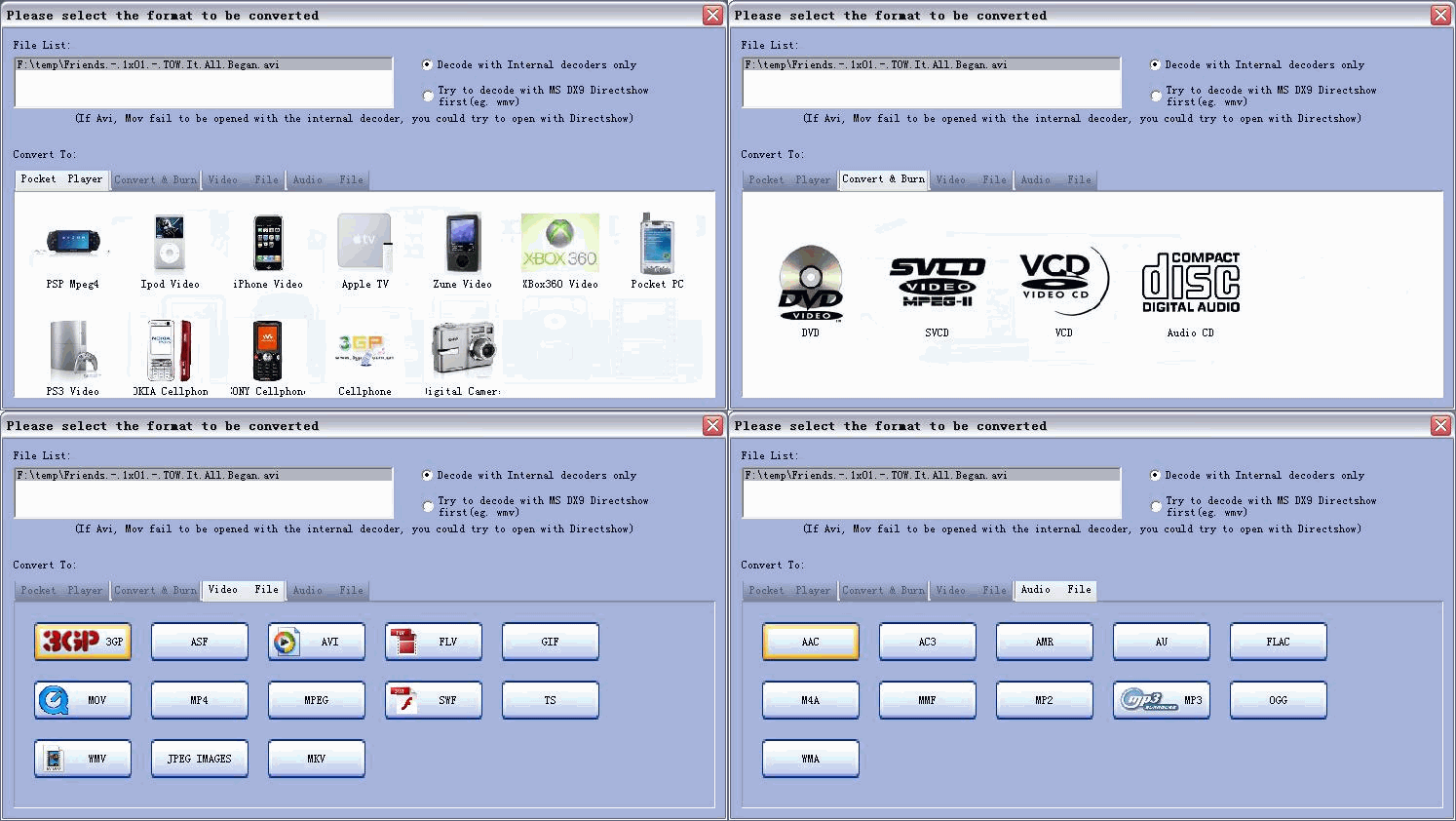
How to Resize an MKV Video File?
|
MKV files are media files (audio and video) that were developed by software manufacturer Matroska. Matroska means "nesting doll" in Russian and MKV files do just that they pack multiple types of files into one file (MKV.) For example, a MKV file may contain subtitles files, audio tracks and multiple video tracks all contained within one file under one format. Resizing an MKV file can not be done with native Windows software and will actually require the use of a third party conversion software. In order to resize the MKV file it will need to be re-encoded to another file format.
Total Video Converter can do it.
Total Video Converter is a powerful video editor which support video editing.
As a full-feature converter software, Total Video Converter also supports other popular video and audio formats including mp4, psp, mpeg, 3gp, flv, mov, asf, wav, wmv, mp3, aac, mmf etc. Meanwhile, it supports for converting and burning video to HD formats like H.264 TS, Mpeg-2 TS, WMV-HD, MKV-HD, DivX-HD, Divx-HD, MOV-HD, FLV-HD and MP4-HD.
Here below will show you the step-by-step guide how to resize video size using Total Video Converter.
Step 1 Download E.M. Total Video Converter.
Free download Total video Converter Or Total Video Converter for Mac. Then install and lauch TVC. Restart the computer and open the program.
Step 2 Look for "import File" that accompanies those titles and click it. A pop up window will appear, navigate to the MKV file on the hard drive and double click it to insert it into the program.
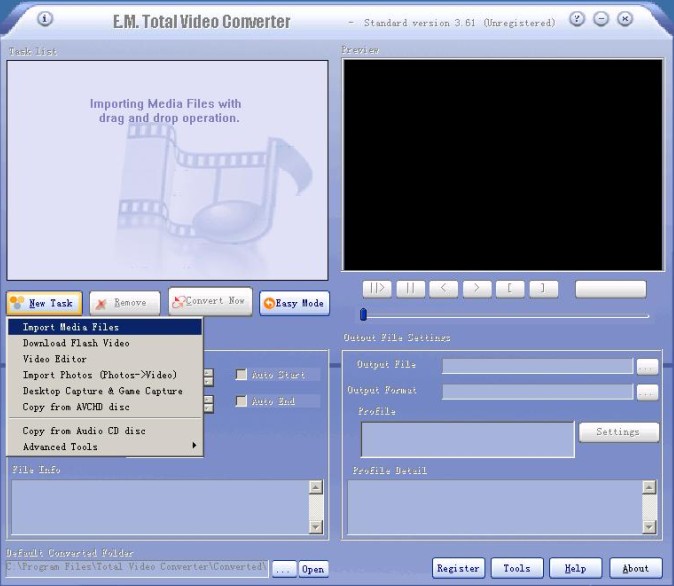
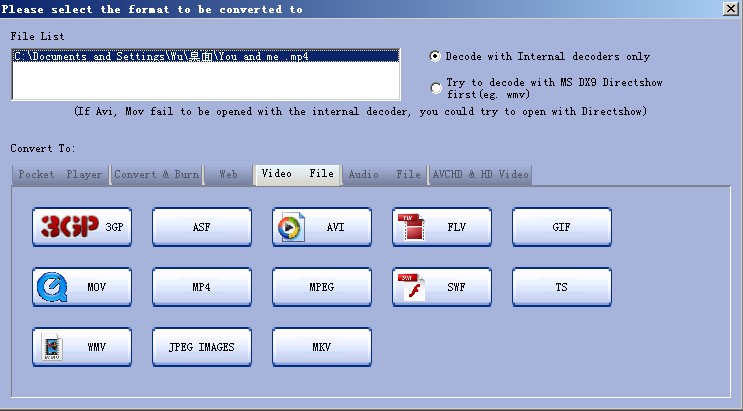
Step 3 Select the "Output Format" Choose from a list of video formats that the MKV file can be converted to. AVI or MPEG is likely the best option for creating a smaller file. Make the selection and click "OK."
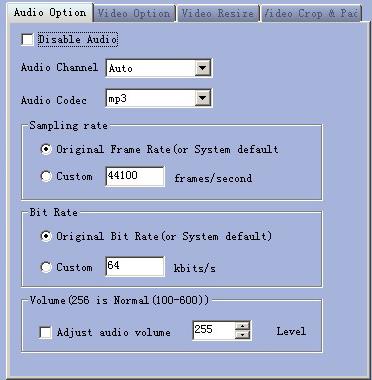
Step 4 Select the "Output Options." Output options are "Resolution," "Bitrate," and "Frame Rate." The default options should be fine for most conversions. Simply the file conversion alone should shrink the file. However if the user really wants to control the size they can decrease the "Resolution," and "Bitrate."
Step 5 Set the "Output Directory" and "File Name." Select the directory where the new file will be created. Type in name for the new file as well.
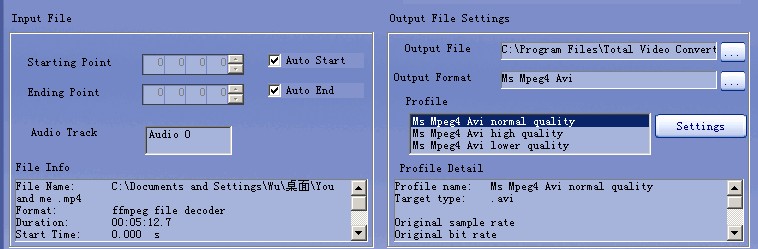
Step 6 Click "Convert Now." The program will begin converting the MKV file. This process may take some time depending on the size of the MKV file and the selected options. Wait for this process to finish. When the conversion is done navigate to the output directory and right click on the new file and click "Properties." Look for the "Size" of the new file; it should be significantly smaller than the original MKV file.
Get more information at: E.M. Total Video Converter.
TVC Free Download
Output Devices Supported
*iPod, iPod nano, iPod classic, iPod shuffle, iPod touch;
*iPhone, iPhone 3G, Apple TV
*Sony PSP, PS3
*Xbox 360
*General 3GP mobile phone, Nokia, Sony Ericsson, Motorola, BlackBerry, etc.
*General MP4 players: Archos, Creative Zen, Zune, iRiver, etc.
*Window Mobile device: Pocket PC, Smart Phone, PDA, Dell Axim X51, HP iPaq hw6500 series, etc.
| Input File Formats Supported |
Video |
AVI, MPEG, WMV, MP4, FLV, MKV, H.264/MPEG-4, DivX, XviD, MOV, RM, RMVB, M4V, VOB, ASF, 3GP, 3G2, SWF, H.261, H.264, DV, DIF, MJPG, MJPEG, DVR-MS, NUT, QT, YUV, DAT, MPV, NSV AVCHD Video (*.mts, *.m2ts), H.264/MPEG-4 AVC (*.mp4), MPEG2 HD Video (*.mpg; *.mpeg),MPEG-4 TS HD Video (*.ts), MPEG-2 TS HD Video (*.ts), Quick Time HD Video (*.mov), WMV HD Video (*.xwmv), Audio-Video Interleaved HD Video (*.avi) |
Audio |
MP3, WMA, AAC, WAV, CDA, OGG, FLAC, APE, CUE, M4A, RA, RAM, AC3, MP2, AIFF, AU, MPA, SUN AU Format |
| Output File Formats Supported |
Video |
AVI, MPEG, WMV, MP4, FLV, H.264/MPEG-4, DivX, XviD, MOV, RMVB, ASF, 3GP, 3G2, SWF, VOB, TS,MKV H.264/MPEG-4 AVC (*.mp4), MPEG2 HD Video (*.mpg; *.mpeg), MKV HD Video, MPEG-2 TS HD Video (*.ts), Quick Time HD Video (*.mov), WMV HD Video (*.wmv), Audio-Video Interleaved HD Video (*.avi) |
Audio |
MP3, WMA, AAC, WAV, OGG, M4A, RA, AC3, MP2, AMR, SUN AU Format |
Image |
BMP, GIF, JPEG, PNG |
Total Video Converter supports reading the following file formats:
Convert Any Video Formats:
Convert video from Real Video Rmvb (.rm,.rmvb)
Convert video from MPEG4 (.mp4)
Convert video from 3gp (.3gp, 3g2)
Convert video from Game Psp (.psp)
Convert video from MPEG1 (.mpg, mpeg)
Convert video from MPEG2 PS (.mpg, mpeg, vob)
Convert video from MPEG2 TS (DVB Transport Stream)
Convert video from DIVX (.divx)
Convert video from Ms ASF (.asf, .wmv)
Convert video from Ms ASF (.asf, .wmv)
Convert video from Ms AVI (.avi)
Convert video from Macromedia Flash video FLV (.flv)
Convert video from Apple Quicktime (.mov)
Convert video from FLIC format (.fli, .flc)
Convert video from Gif Animation (.gif)
Convert video from DV (.dv)
Convert video from Matroska (.mkv)
Convert video from ogm (.ogm)
Convert video from Video Formats Dx9 Directshow can open
Convert Any Audio Formats:
Convert audio from CD audio (.cda)
Convert audio from MPEG audio (mp3, mp2)
Convert audio from Ms WAV (.wav)
Convert audio from Ms WMA (.wma)
Convert audio from Real Audio (.ra)
Convert audio from OGG (.ogg)
Convert audio from Amr audio (.amr)
Convert audio from AC3 (.ac3)
Convert audio from SUN AU format (.au)
Convert audio from Macromedia Flash embedded audio (.swf)
Convert audio from Audio Formats Dx9 Directshow can open
Total Video Converter supports generating the following file formats:
Total Video Formats Converter:
Convert to MPEG4(.mp4) video
Convert to 3gp(.3gp, 3g2) video
Convert to Game Psp (.psp) video
Convert to MPEG1 (.mpg, mpeg) video
Convert to NTSC, PAL DVD mpeg and Burn video to DVD disc
Convert to NTSC, PAL SVCD mpeg and Burn video to SVCD disc
Convert to NTSC, PAL VCD mpeg and Burn video to VCD disc
Convert to Ms Mpeg4 AVI (.avi) video
Convert to Divx AVI (.avi) video
Convert to Xvid AVI (.avi) video
Convert to H264 AVI (.avi) video
Convert to Mjpeg AVI (.avi) video
Convert to HuffYUV AVI (.avi) video
Convert to Swf Video (.swf) video
Convert to Flv Video (.flv) video
Convert to Gif Animation (.gif) video
Convert to Mpeg4 Mov (.mov) video
Convert to Apple Quicktime (.mov) video
Convert to DV (.dv) video
Convert to WMV (.wmv) video
Convert to HD Mpeg TS (.ts) video
Convert to ASF (.asf) video
Total Audio Formats Converter:
Convert to MPEG audio(mp3, mp2) audio
Convert to Ms WAV (.wav) audio
Convert to Ms WMA (.wma) audio
Convert to OGG (.ogg) audio
Convert to Amr audio (.amr) audio
Convert to AC3 (.ac3 audio )
Convert to SUN AU format (.au) audio
Convert to m4a (mp4 audio) audio
Convert to aac (aac audio) audio
Convert to mmf (mmf audio) audio
Convert to Flac (flac audio) audio
Get more information at: Total Video Converter.
Download Buy now
|