Free · No install · No sign-up
Image Text Editor: Add Text to a Photo & Edit Text in an Image
Write on any picture in seconds. This free image text editor lets you add text to a photo, edit text in an image, and change the font, size, colour and position — then save it as JPG, PNG or WebP. Everything happens inside your browser, so your pictures never leave your device.
- 100% free, no watermark
- No account needed
- Photos stay on your device
- Mac, Windows, iPhone & Android
Opens JPG, PNG, WebP, GIF and BMP · Saves as JPEG, PNG or WebP with adjustable quality · Nothing is uploaded anywhere
How to add text to a photo online
Four steps, about a minute, no software to install. Once the picture is loaded you add text to photo after photo in the same window — there are no layer panels to learn.
-
Open your picture
Click Open to choose a file, drag an image onto the canvas, or paste it straight from the clipboard. The photo appears in the editing window immediately.
-
Pick the text tool
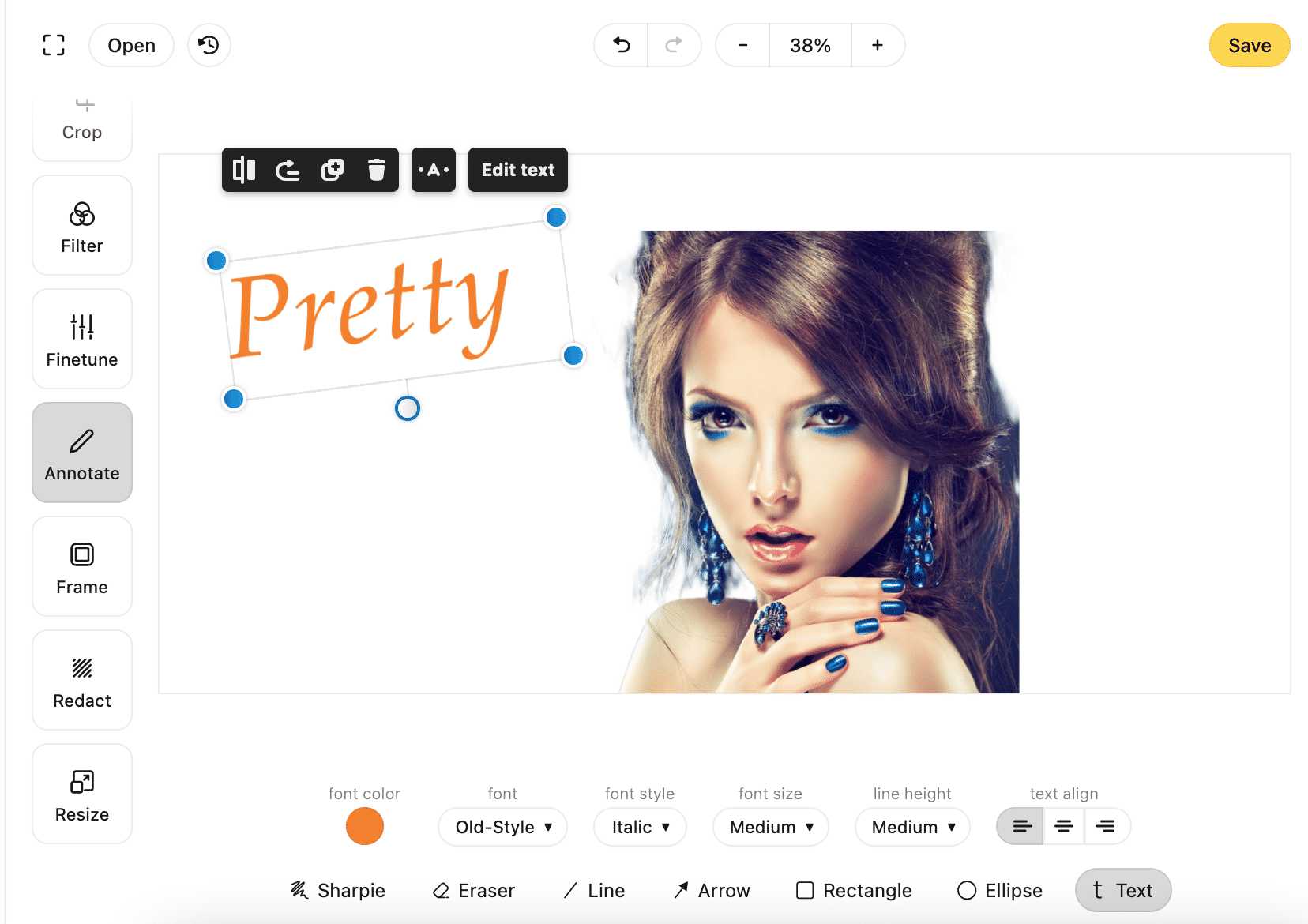
Choose Annotate in the toolbar, select Text, click where the words should start and start typing. Multi-line text is supported.
-
Style the text
Set the font family, size, weight, alignment and line height, then pick a text colour and a text background colour. Drag the corners to resize or reposition the block.
-
Save and download
Press Save, choose JPEG, PNG or WebP, adjust the quality slider if you want a smaller file, and download the finished image. No watermark is added.
How to edit text in an image that already has text
This is a pixel-based editor, so text that is already baked into the picture cannot be re-typed the way you would edit a document. The question we see most often is how to edit text in image files that already have words burned in — there are two reliable ways to do it.
1. Cover the old text, then write over it
Zoom in, then use a filled rectangle or the pen in the colour of the background to paint out the original words, and type the replacement in the same spot.
This is the quickest method for price tags, product labels, posters, screenshots and memes.
2. Crop it out, or blur it away
If the text sits near an edge, cropping is cleaner than covering it. For anything private — names, addresses, plates, account numbers — use the redact tool to blur or pixelate the area before the image goes anywhere.
Need text you can re-edit later? If the same design gets updated every week, you want editable text layers and PSD support instead of flat pixels. How to add and edit text with PixelStyle Photo Editor on Mac walks through it step by step.
What this online image editor can do
This photo text editor is not a stripped-down demo. Every tool below is unlocked in the free version, there is no premium tier inside the editor, and nothing is watermarked.
Add text anywhere
Captions, quotes, watermarks, price labels and memes. Click, type, then drag to place it exactly where you want.
Edit text in an image
Paint over the old wording with a shape in the background colour, then type the new text on top of it.
Shapes and arrows
Rectangle, ellipse, line, arrow and a freehand pen for tutorials, how-tos and product callouts.
Crop and rotate
Crop with ready-made ratios such as 1:1, 4:3, 16:9 and 9:16, or drag a custom frame. Rotate to straighten a tilted shot.
Resize to exact pixels
Enter the width and height a website, marketplace listing or print job needs, and keep the proportions locked if you like.
Filters and fine-tuning
One-click filter presets plus brightness, contrast and colour adjustments for photos that came out dark or flat.
Frames and vignette
Add a border or a vignette so a photo looks finished, without opening a full design application.
Blur and redact
Hide faces, number plates, phone numbers or anything else private before you publish or send the picture.
Because nothing is uploaded, this online image editor stays responsive on an older laptop or a phone — your file never has to travel to a server and back before you can see the change.
What people use it for
Anywhere you need to edit image text online and do not want to open Photoshop for a two-minute job.
- Social media postsHeadlines on square and vertical images for Instagram, Facebook, X and LinkedIn.
- Memes and quotesTop and bottom captions in a heavy font, resized for whichever feed you post to.
- Product photosPrice tags, size notes and “new” or “sale” labels on catalogue shots and marketplace listings.
- Video thumbnailsBig readable titles for YouTube thumbnails, cropped to 16:9 before upload.
- Posters and flyersEvent dates, venue names and contact details on a photo background.
- Screenshots and tutorialsArrows, boxes and numbered steps added to a screen capture for documentation.
Recommended if you do this often
PixelStyle Photo Editor — when the text has to stay editable
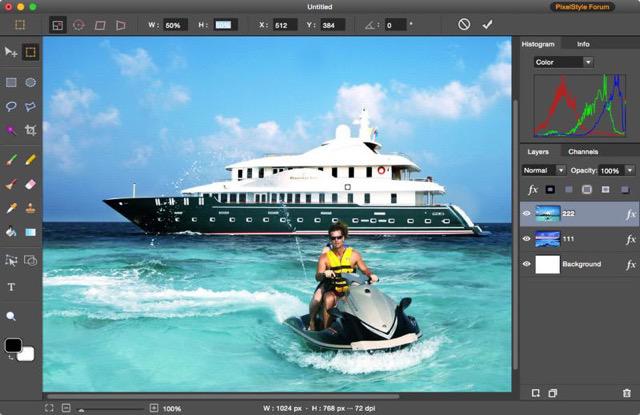
The online editor is perfect for one-off jobs. If you build the same graphic again and again, PixelStyle Photo Editor for Mac gives you real text layers: reopen the file next month, change one word, and everything else stays exactly where you left it.
- Editable text layers, so wording is never flattened into pixels
- Layers, selections, curves, brushes and PSD support
- Opens and saves TIFF, PSD, JPG, PNG, WebP and more
- Works offline, with no browser involved
- Free download with a 7-day free trial
Requires macOS · 7-day free trial · or download the .dmg
Online image text editor vs. a desktop photo editor
Both are free to try. This image text editor online wins for one-off jobs; a desktop editor wins once the same design gets reworked every week.
| This online image text editor | PixelStyle Photo Editor (Mac) | |
|---|---|---|
| Install | Nothing — just open this page | Download and install a macOS app |
| Text | Add, style and position text | Editable text layers you can reopen and change |
| Coming back later | Start again from the saved image | Keep layers and pick up where you left off |
| File formats | Opens JPG, PNG, WebP, GIF, BMP · saves JPEG, PNG, WebP | Opens and saves PSD, TIFF, JPG, PNG, WebP and more |
| Advanced tools | Crop, resize, filters, shapes, frames, redact | Layers, selections, curves, brushes and PSD support |
| Device | Any browser: Mac, Windows, Linux, iPhone, iPad, Android | Mac |
| Price | Free, no account | Free download, 7-day free trial |
Frequently asked questions
Short answers to what people ask most about this photo text editor.
Is this image text editor really free?
Yes. Every tool on this page is free to use, there is no account to create, and no watermark is added to the image you download. Text, shapes, crop, resize, filters, frames and redact are all unlocked.
Are my photos uploaded to a server when I use it?
No. The editor is built with JavaScript and works on the image inside your own browser using the HTML canvas. The picture you open is not sent anywhere, so it never leaves your computer or phone.
How do I add text to a photo online for free?
Open or drag your image into the editor, click Annotate in the toolbar, choose the Text tool, click on the picture and start typing. Style the text, then click Save and download the result.
Can I edit text that is already in the image?
Text that is already part of the picture cannot be re-typed like a document, because the letters are made of pixels. You can paint over the old words with a filled rectangle or the pen and type the replacement on top, crop the text out, or blur it with the redact tool.
Can I change the font, size and colour of the text?
Yes. The text tool lets you pick the font family, font size, bold or italic style, alignment, line height, and both the text colour and the text background colour.
Which file formats can I open and save?
You can open JPG, PNG, WebP, GIF and BMP images. You can save the edited picture as JPEG, PNG or WebP and set the compression quality before downloading.
Does it work on iPhone, iPad and Android?
Yes. This online image editor runs in any modern browser, so it works on iPhone, iPad, Android phones and tablets as well as on Windows and Mac computers. A larger screen with a mouse is simply more comfortable for precise text placement.
Do I need to install anything or sign up?
Neither. There is no download, no plug-in and no registration. Open the page, edit your photo, and close the tab when you are done.
Can I use it as a normal photo editor online?
Yes. Adding text is only one part of it. The same free photo editor online crops, rotates, resizes, applies filters, adds frames and blurs private details, so you can finish a photo without ever opening the text tool.
 Super Eraser for Mac
 Super PhotoCut
 Super Vectorizer Mac
 PixelStyle Photo Editor