Free · No install · Works in your browser
Crop Image Online Free — Any Ratio, No Upload
Cut a photo down to the part that matters in a few seconds. Choose a ready-made ratio such as 1:1 for Instagram or 16:9 for a YouTube thumbnail, drag your own crop frame, straighten a tilted horizon, then download the result as JPG, PNG or WebP. The picture is processed inside your browser, so it is never uploaded to a server.
- Free, no watermark
- No account needed
- Files stay on your device
- Mac, Windows, iPhone & Android
How to crop an image online
Four steps, about thirty seconds. Nothing to install and nothing to sign up for.
-
Open your photo
Click Open, drag the file onto the canvas, or paste it from the clipboard. JPG, PNG, WebP, GIF and BMP all work.
-
Pick a ratio or freeform
Choose Crop in the toolbar. Pick 1:1, 4:3, 16:9, 9:16 or any other preset, or leave it on Custom and drag the corners yourself.
-
Slide the frame into place
Drag the crop box to move it and pull the handles to resize. The area outside the frame is what gets removed, so check that faces and text are still inside.
-
Straighten, then save
If the photo is tilted, rotate it until the horizon looks level. Press Save, pick JPEG, PNG or WebP and download.
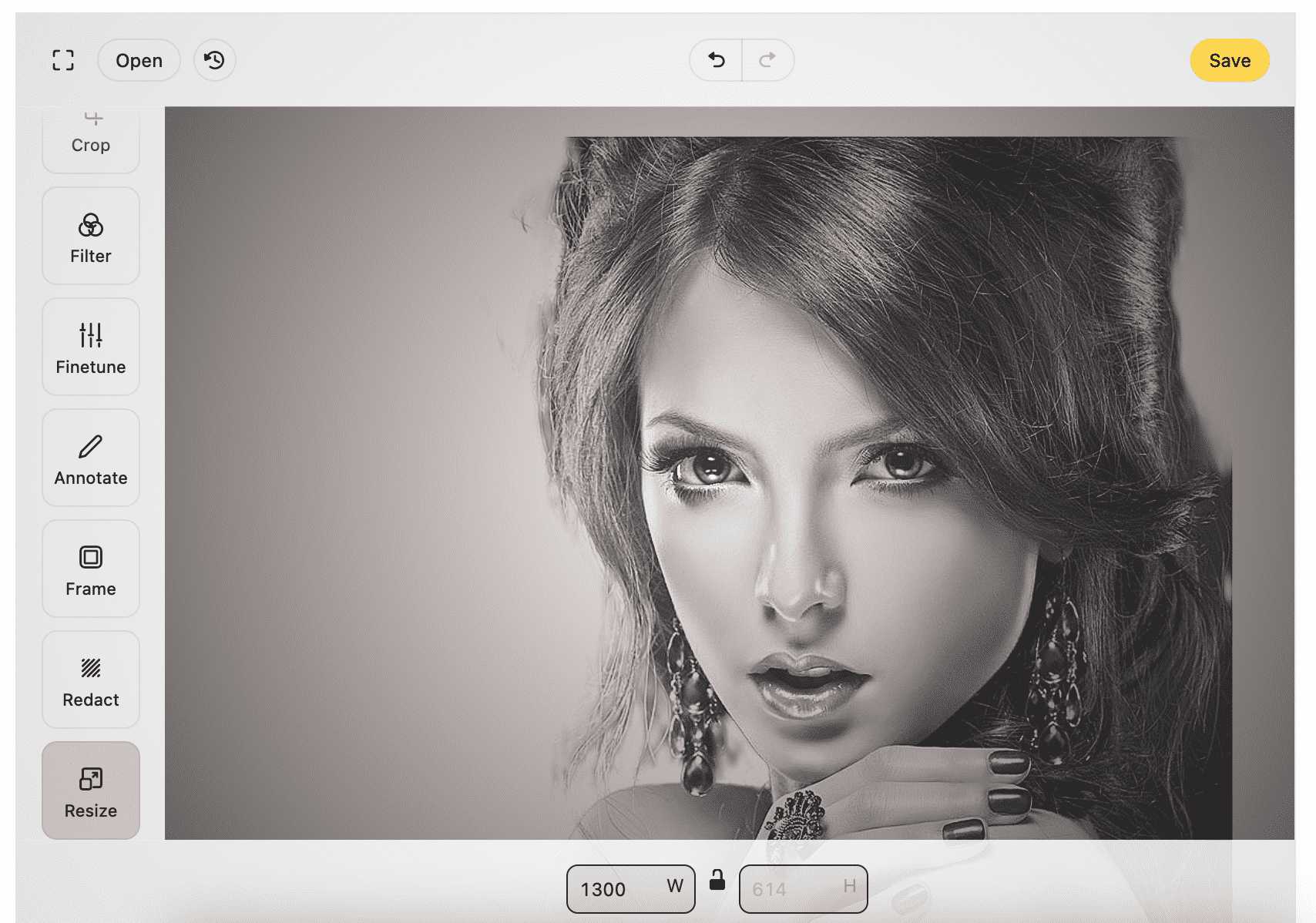
What the crop tool actually does
It is a real cropping tool, not a CSS frame: the pixels outside the box are removed from the exported file, so the image gets smaller both in dimensions and in file size.
Ready-made ratios
1:1, 2:1, 3:2, 4:3, 5:4, 7:5, 16:10, 16:9, 21:9 and the portrait versions 9:16, 4:5, 2:3 and more.
Freeform crop
Leave the ratio on Custom and drag any rectangle you like. Useful for cutting dead space off a scan or a screenshot.
Rotate and straighten
A tilted photo can be turned upright first, then cropped, so you do not lose the edges you just fixed.
Combine with resize
Crop to the shape you need, then use Resize to set the exact pixel width the destination asks for.
Where people use crop most
Any job where one photo has to fit a box that someone else defined.
- Social covers and postsSquare 1:1 posts, 4:5 feed images and the wide banners that LinkedIn, Facebook and X squeeze into their own crops.
- Marketplace listingsCut the background clutter so the product fills the frame, which is what makes a thumbnail readable in a grid.
- Scans and documentsTrim the desk around a photographed receipt, ID or form before sending it to someone.
- Screenshots and slidesRemove the browser chrome or the taskbar so only the part you are explaining survives.

If you crop the same way every week
PixelStyle Photo Editor does it with layer-aware crops on Mac
The online tool is perfect for a one-off crop. When you crop, retouch and re-export the same set of product photos every week, a desktop editor with layers, selections and batch-friendly saving will save you far more time than a browser tab.
- Crop without flattening the text and logo layers you already positioned
- Selections, curves, brushes and PSD support for real retouching
- Opens and saves PSD, TIFF, JPG, PNG and WebP
- Works offline, with no browser involved
Requires macOS · 7-day free trial · or download the .dmg
Cropping questions people actually ask
Short, checkable answers.
Does cropping reduce the file size?
Yes. The pixels outside the frame are discarded from the exported file, so both the dimensions and the number of bytes go down. If you then export as WebP or lower the JPEG quality, the file gets smaller again.
Is the image uploaded to a server?
No. The editor runs in your browser and works on the picture with the HTML canvas. Nothing is sent to EffectMatrix, so the file never leaves your computer or phone.
What is the difference between cropping and resizing?
Cropping removes part of the picture and changes its shape. Resizing keeps the whole picture and changes how many pixels it is made of. Most platform requirements need both: crop to the right ratio, then resize to the right pixel width.
Can I crop to an exact size such as 1080 by 1080?
Yes. Crop with the 1:1 preset first, then switch to Resize and type 1080 for both width and height with the ratio locked.
Does cropping hurt the image quality?
Cropping itself only removes pixels, it does not resample anything, so the part that remains is untouched. Quality only drops if you then scale that crop up to a larger size than it originally had.
Which formats can I export?
JPEG, PNG and WebP. Choose PNG if you need a transparent area, WebP for the smallest file on the web, and JPEG for maximum compatibility.