Free · No install · Crops in your browser
Change the Aspect Ratio of an Image Online, Free
An aspect ratio is the shape of a picture, not its size: 16:9 is a wide rectangle, 4:5 is a tall one, 1:1 is a square. Turning a 3:2 camera photo into a 16:9 video frame means cutting pixels off the long edges, and that is exactly what this crop tool does. Choose a preset, drag the frame, watch the output size update, then export. The picture is processed inside your browser, so the file never leaves your device and there is nothing to sign up for.
- Free, no watermark
- No account needed
- Files stay on your device
- Mac, Windows, iPhone & Android
How to change the aspect ratio of an image
Four steps. The only one people skip is the second, and that is the one that causes re-uploads.
-
Open the picture
Click Open, drop the file on the canvas or paste it from the clipboard. The editor reads the real pixel dimensions, which matters because a file named 16x9 is not always 16:9.
-
Write down the ratio you actually need
4:5 for an Instagram feed post, 16:9 for a video slide, 3:2 for a 6 by 4 inch print. Decide before you drag anything, so you crop once instead of twice.
-
Pick the ratio in the crop panel
Open Crop and choose a preset, or leave it on Custom and pull the handles yourself. The panel shows the resulting width, height and ratio while you drag.
-
Check the subject, then export
Move the frame rather than shrinking the subject. When the composition survives the new shape, press Save and pick JPEG, PNG or WebP.
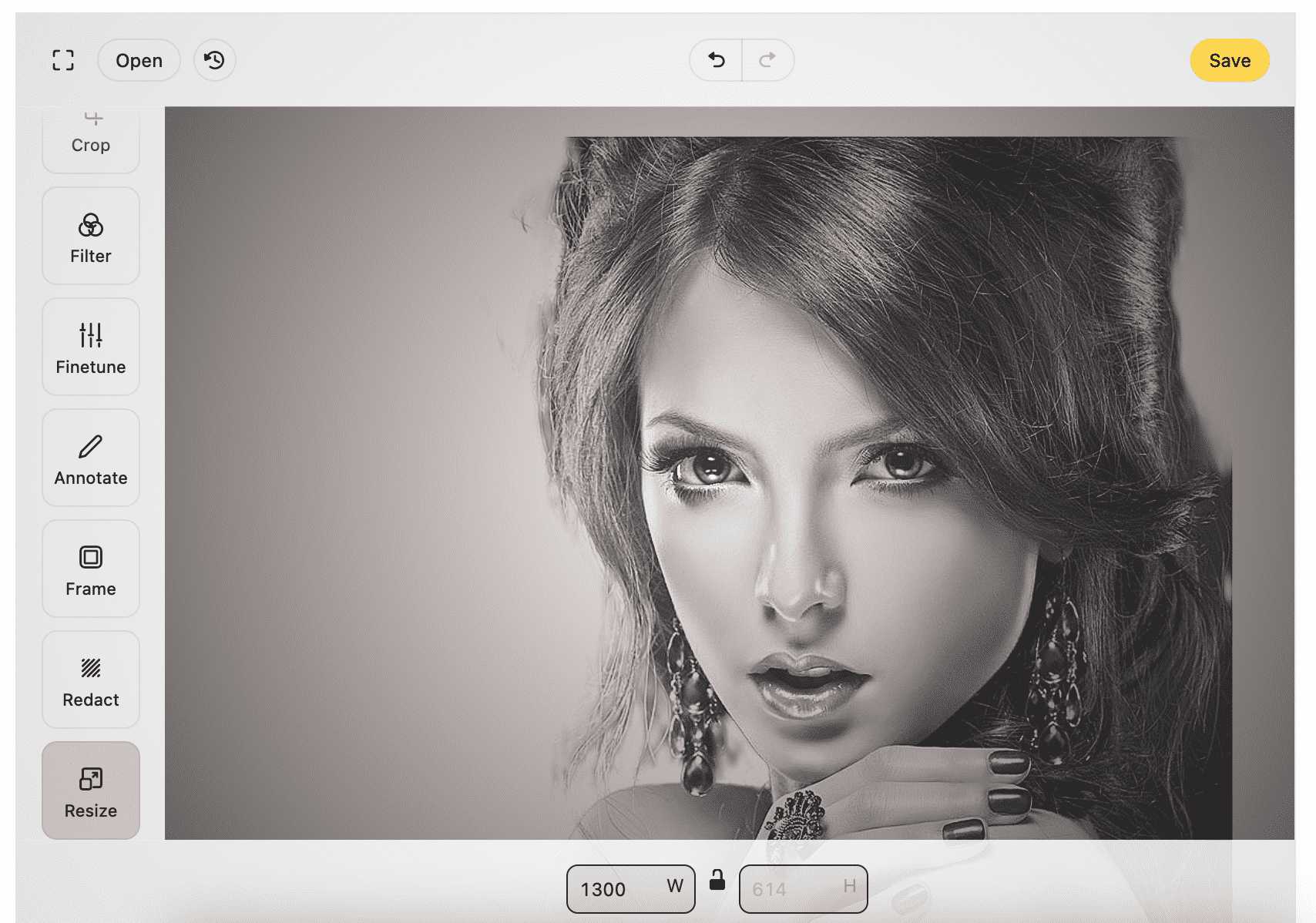
What actually changes when you change the ratio
The shape changes because pixels are removed. Nothing is stretched, and nothing is added, which is the key difference between this tool and a resize.
Presets for everyday shapes
1:1, 2:1, 3:2, 4:3, 5:4, 7:5, 16:10, 16:9 and 21:9 for wide shapes, and 4:5, 2:3 and 9:16 when the picture has to stand up.
A custom frame for odd jobs
Leave the ratio on Custom and drag any rectangle. Handy for matching a client's template that is 1.91:1 or any other non-standard banner.
Exact pixels after the shape
Once the shape is right, switch to Resize, keep the ratio locked and type the width the destination requires. 1080 wide becomes 1080 by 1350 for 4:5.
What it will not do: add space
There is no padded canvas here. If the whole photo has to survive inside a wider frame, the empty area has to be created in a layer-based editor, not in this crop tool.
Where the wrong ratio costs you a re-upload
Almost every platform publishes a ratio, applies its own crop if you miss it, and shows you the damage afterwards.
- Social feedsA 4:5 post fills more of a phone screen than a 1:1 square, while 1.91:1 is what link previews want. Cropping the same shot three ways beats letting the platform choose for you.
- Video frames and slides16:9 is the baseline: 1920 by 1080 for full HD, 1280 by 720 for a thumbnail. A 4:3 still dropped into a 16:9 deck gets bars on both sides.
- Prints and framesA 3:2 sensor photo fits a 6 by 4 inch print with nothing lost. A 5 by 7 inch frame is 5:7, so something has to be cut, and it should be your decision.
- Websites and marketplacesHero banners are often 3:1 or 16:6, while product grids crop everything to a square whether you planned for it or not.
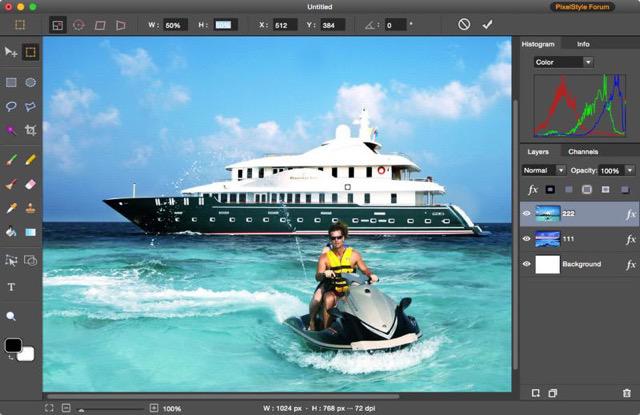
When the whole photo has to stay
PixelStyle changes the frame without cutting the picture
Cropping is the fast answer for a single post. When a client insists that nothing may be trimmed, the fix is to build a document at the target shape and place the photo on its own layer inside it, so the extra area is filled with a colour, a gradient or a blurred copy. That is a layer job rather than a crop job, and it is what PixelStyle Photo Editor does on a Mac.
- Keep the full frame: put the photo on one layer and position it over a background layer
- Select several layers at once and align, flip or transform them together
- Opens HEIC, RAW, PSD, TIFF, PDF and SVG, and exports WebP, TIFF, PNG and JPEG
- AI 4X Super Resolution for a tight crop that still has to print large
Requires macOS · 7-day free trial · or download on the Mac App Store
Aspect ratio questions people actually ask
Short answers, all of them checkable in the tool above.
Is aspect ratio the same as resolution?
No. The ratio is the relationship between width and height, so 1920 by 1080 and 1280 by 720 are both 16:9. Resolution is the pixel count. You can change one without touching the other, and most platform requirements ask for both.
Does changing the ratio stretch the photo?
Not here. This tool changes the shape by cropping, so the remaining pixels keep their proportions. Stretching only happens if you resize with the ratio lock switched off, which squashes faces and is worth avoiding.
Can I keep the whole photo and fill the empty sides?
Not in this browser editor: the crop frame cuts rather than pads, and the frame tool draws inside the existing canvas. Filling the sides needs a layered document with a background layer, which is a desktop editing job.
What ratio should I use for Instagram and YouTube?
Instagram feed posts look best at 4:5 or 1:1, stories and reels at 9:16, and YouTube thumbnails and video are 16:9. Each of those is one preset in the crop panel.
What is 16:9 in pixels?
1920 by 1080 for full HD video, 1280 by 720 for a YouTube thumbnail. Crop with the 16:9 preset first, then resize to those numbers with the ratio locked so the shape cannot drift.
Does cropping to a new ratio reduce quality?
The crop itself only deletes pixels outside the frame, so what is left is untouched. Sharpness drops only if you scale that smaller crop back up, which is the point where an upscaler earns its keep.