Free · No sign-up · Files stay on your device
Make a Photo Square for Instagram — 1:1 Crop, Free
Instagram shows a post in whatever shape you uploaded, but it stores the profile grid as a square, which is how a photo that looked fine in the feed ends up with a chopped forehead in the thumbnail. The fix is to decide the square yourself: crop to 1:1, place the subject where a centred square will keep it, set the file to 1080 by 1080 pixels and export. The whole sequence happens in this browser tab, on a copy of the picture, with nothing sent to a server. What this page will not pretend is that it can pad: if you want white space around an uncropped photo, that is a canvas job, and it is covered honestly below.
- 1:1 crop preset
- Exact 1080 by 1080 export
- 1080 pixels is what Instagram keeps
- No account, no watermark
How to make a photo square for Instagram
Four steps. The crop is the decision, the pixel count is just housekeeping.
-
Open the photo
Click Open, drag the picture in or paste it from the clipboard. JPG, PNG, WebP, GIF and BMP all load, and the browser reads them from disk without rewriting the original.
-
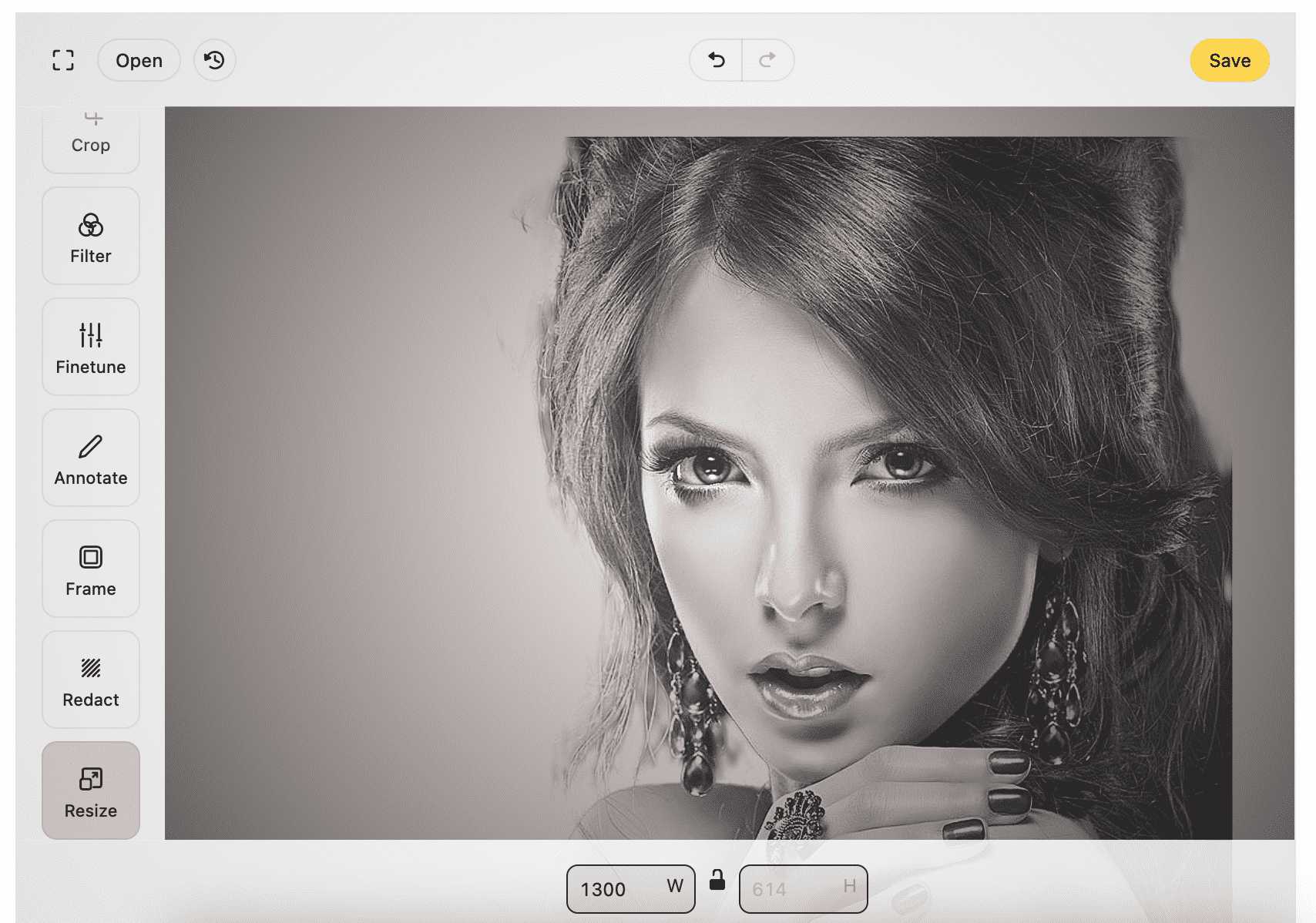
Crop to 1:1 and move the frame
Choose Crop and pick the square preset so the sides stay equal. Then drag the box itself rather than a corner: once the ratio is right, sliding the frame is what decides which part of the picture survives. For a portrait, keep the eyes roughly a third of the way down and leave a little room above the head.
-
Set the output to 1080 pixels
Switch to Resize, keep the ratio locked and type 1080 into the width. If the square you cropped only had 700 pixels across, do not enlarge it for the sake of the number. Instagram accepts smaller files, and upscaling adds softness rather than detail.
-
Export and upload it yourself
Press Save and take JPEG for a photograph, PNG for an image that is mostly type or flat colour. The download lands in your folder, and you choose when and where to upload it — the picture never travels through this page.
What a square crop costs, and how to spend it well
A 1:1 frame removes the sides of a landscape photo. Since something has to go, the work is choosing what.
One preset, no arithmetic
The crop panel carries a square preset, so the frame stays locked while you drag it around. Corners change the size, the body of the box changes the position, and the position is the part that decides whether the photo still works.
The grid is the real judge
A post appears in the feed at the ratio you uploaded, but the profile grid renders a centred square of it. Compose with that smaller square in mind; a subject parked at the left edge of a wide shot will simply be gone from the thumbnail.
White edge, not white padding
The Frame tab can lay a white band inside the square, which reads as a print margin. It is drawn over the edges of the photo rather than around it, so the exported file keeps the same dimensions and loses a sliver underneath the band.
Format follows content
Instagram re-encodes whatever arrives, so a 3 MB JPEG and a 600 KB JPEG look much alike afterwards. What survives the trip is resolution up to 1080 pixels on the long edge, and crisp edges on lettering — which is the one place PNG earns its extra bytes.
Four places a square still earns its keep
Not every post needs to be square. These are the ones that do.
- The profile gridNine tiles in three columns are all cropped to squares, so a set of squares is the only way to make the grid look intentional without checking every thumbnail by hand afterwards.
- Feed posts and carouselsA square survives both the feed and the grid without a second crop. Carousels often mix it with 4:5 portrait slides, and opening on a square gives the grid a clean anchor.
- Resale and marketplace listingsSecond-hand apps show thumbnails as squares as well. A flat square with the item centred reads better in a list of twenty than a tall photo with the object lost in the middle.
- One image, several platformsThe same square can go into a story on a coloured background, a Facebook post or a pin board without another round of cropping and another chance to lose the subject.
When the square needs padding, not cropping
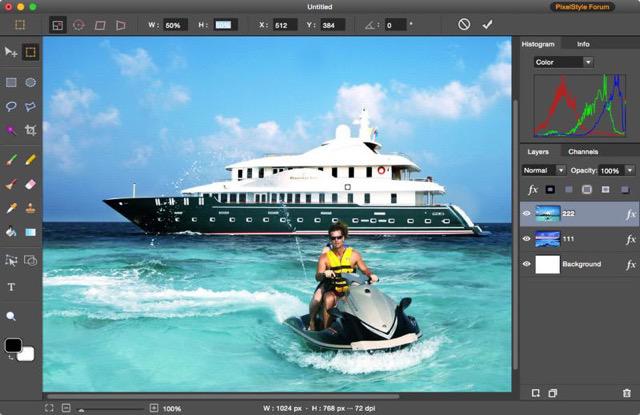
PixelStyle grows the canvas instead of the crop
Padding a tall photo into a square is the one job this page cannot finish. The browser editor crops and draws inside the picture; it does not add space around it. On a Mac, PixelStyle Photo Editor does exactly that: open the image, enlarge the canvas to a square, fill the new area with white or a colour sampled from the photo, and the whole picture stays intact on its own layer. The same window handles the cleanup a phone photo usually wants first — curves, the healing brush, the clone stamp — and its AI Background Remover will lift a subject off a cluttered background so it can sit on a clean square instead.
- Canvas size can be enlarged, so space is added rather than cropped away
- Fill the new area with any colour, or keep it transparent and export PNG
- AI Background Remover and AI Auto Segmentation for a clean subject
- Layers, masks, curves and 50+ filters, all offline on the Mac
Requires macOS · 7-day free trial · or download on the Mac App Store
Instagram square questions, answered plainly
Sizes, crops and the one thing this tool cannot do.
What size should a square Instagram photo be?
1080 by 1080 pixels. Instagram will take a larger file and scale it down, but nothing above 1080 pixels on the long edge is kept, so exporting at 3000 wide gains nothing. A square smaller than 1080 still uploads; it just looks softer once the app stretches it.
Does Instagram crop my photo to a square automatically?
Not in the feed. Feed posts keep 1:1, 4:5 and 1.91:1 shapes, so a portrait post stays a portrait. The square crop happens in the profile grid, where it is automatic and centred — which is exactly how a face near the edge of a wide photo vanishes from the thumbnail.
How do I keep the whole photo inside the square?
Add space instead of removing it. Instagram's own upload screen does this when you pinch to zoom out and choose a background colour. This editor cannot grow the canvas; its frame is drawn inside the picture. For a padded square with the full photo visible, use the app's padding or a desktop editor.
Should I upload a JPEG or a PNG?
JPEG for photographs, PNG when the image is mostly text, a logo or flat colour, where JPEG leaves visible fringing around letters. Instagram re-encodes both, but starting from a clean PNG keeps small type legible after the trip.
Why does my square look soft after uploading?
Two usual reasons: the crop only held a few hundred pixels and was scaled up to 1080, or the original was a screenshot that had already been compressed. Cropping cannot invent detail, and enlarging only spreads the pixels that exist.
Is the photo uploaded while I edit it?
No. The editor runs in the tab and works on a canvas copy of the file. You download the finished square and upload it to Instagram yourself, so the picture only ever goes to the place you choose.