Free · No sign-up · Nothing uploaded
Add a Frame to a Photo Online — Free, No Upload
Most photos do not need rescuing, they need an edge. A hairline stops a white product shot from bleeding into a white marketplace grid, a thin dark line tells a reader where your screenshot ends and their window begins, and a thick paper-white margin makes a square crop look printed rather than posted. All three are the same job here: open the Frame tab, choose a style, set how thick it is and what colour it should be, then export. The picture is decoded inside this browser tab, so a photo of an invoice or a child never travels to a server. This page is also specific about the one thing the frame cannot do: it is drawn over the edges, so the photo keeps its pixel dimensions and loses a sliver of the picture underneath.
- Nine border styles
- Thickness and colour adjustable
- JPG, PNG and WebP export
- No account, no watermark
How to add a frame to a photo online
Four steps. The border is previewed live, so you can try all nine styles before committing to one.
-
Open the picture
Click Open, drop the file onto the canvas or paste it from the clipboard. JPG, PNG, WebP, GIF and BMP all load, and the browser reads the bytes locally rather than sending them anywhere.
-
Choose a style in the Frame tab
The panel lists nine looks: a sharp solid block, a rounded one, a single hairline, stacked multiple lines, three corner arrangements, corner hooks and a Polaroid margin. The first option in the list removes the frame again, so you can go back to the bare photo at any time.
-
Set thickness, inset and colour
Thickness is a percentage of the picture, which is why a border that looks right on a phone snapshot still looks right on a 3000-pixel export. Inset pushes the line inwards from the edge, offset controls the spacing between stacked lines, and the colour field takes pure white, warm paper, black or any shade in between.
-
Finish with a vignette and export
A vignette darkens the corners so the eye lands on the subject, and it sits among the filters rather than in the frame panel. Press Save, pick JPEG, PNG or WebP and download a new copy; the original file on your disk is untouched.
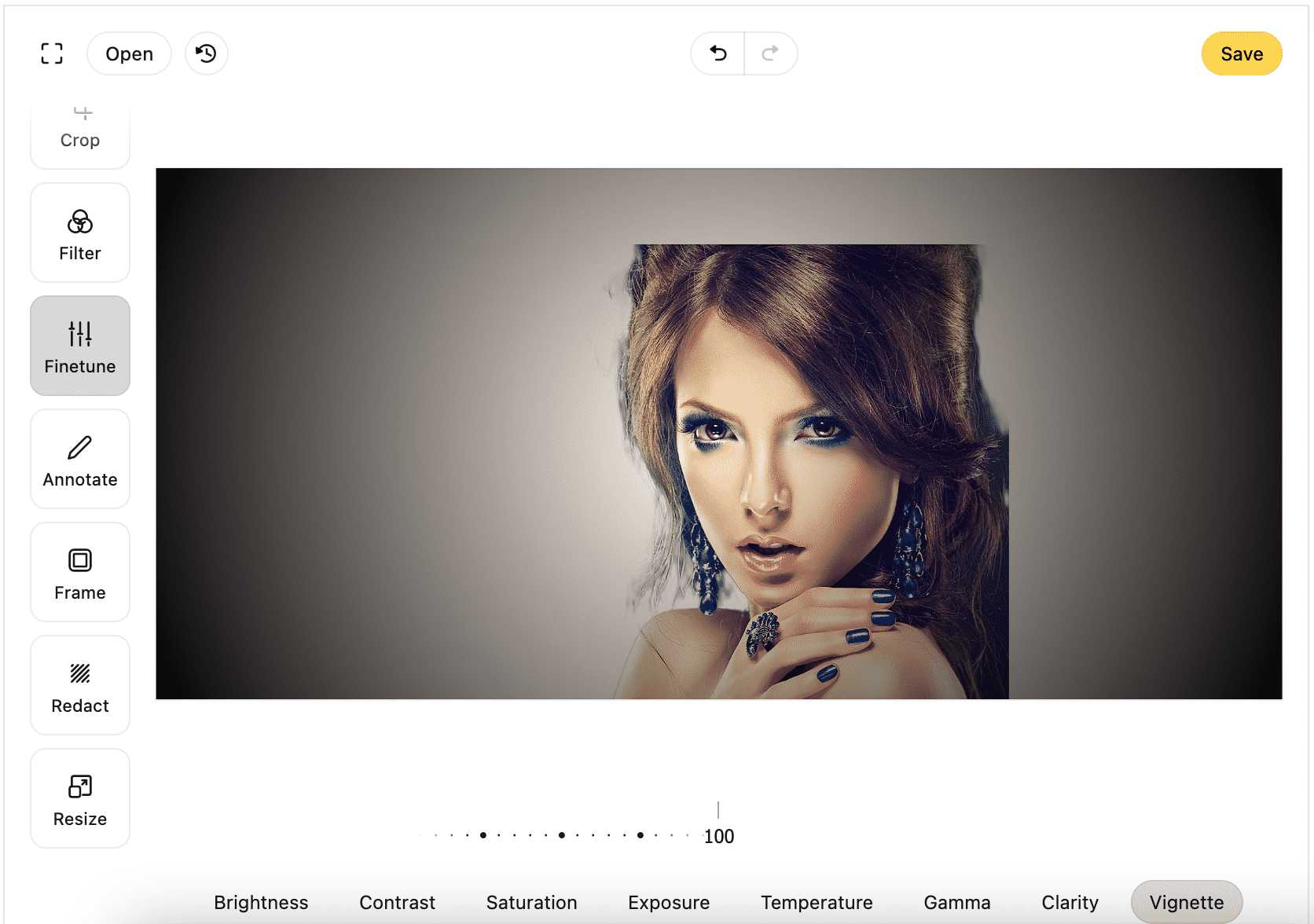
What the frame panel actually controls
Nine ready-made looks and four numbers. Nothing here needs a design background, and nothing is permanent until you export.
Nine styles, one click each
A solid sharp band, a solid band with rounded inside corners, a single thin line, a set of stacked lines, three ways of marking only the corners, small corner hooks, and a Polaroid margin. Switching styles replaces the previous one instead of stacking on top of it.
Thickness as a percentage
The width of the band is stored relative to the image, so the proportion survives a change of size. That is friendlier than pixels when you are framing the same picture for a thumbnail and for print, and it is the reason this tool cannot promise an exact 20-pixel border.
Inset, offset and colour
Inset decides how far the border sits from the edge of the photo, which is what turns a heavy band into a delicate one. Offset only matters on the multi-line styles, where it sets the gap between lines. Colour runs from pure white through paper tones to black.
Drawn inside, not around
The frame covers the outer edge of the picture rather than growing the canvas. The exported file keeps the same width and height as the original, so plan for the sliver that disappears under the band.
Where a border earns its place
Four situations where one line of colour does more than another filter would.
- Marketplace product shotsListings are shown as a grid of white tiles. A product photographed on white has no visible boundary, so a thin grey or black hairline gives the item an outline and stops it from floating into the next tile.
- Screenshots in documentationA screenshot pasted into a support article or a slide deck runs straight into the page background. A one-pixel-looking line marks exactly where the capture ends, which stops readers from hunting for a button that is part of your screenshot rather than their own screen.
- Polaroid-style gifts and printsThe Polaroid style leaves a broad even margin with a heavier bottom band, the shape people recognise from instant prints. It suits portraits and holiday photos far better than a geometric frame.
- A feed that looks deliberatePick one style and one colour, then repeat it across every image in a set. Five photos with the same border read as a series; five with five different treatments read as five accidents.
When the border has to be exact
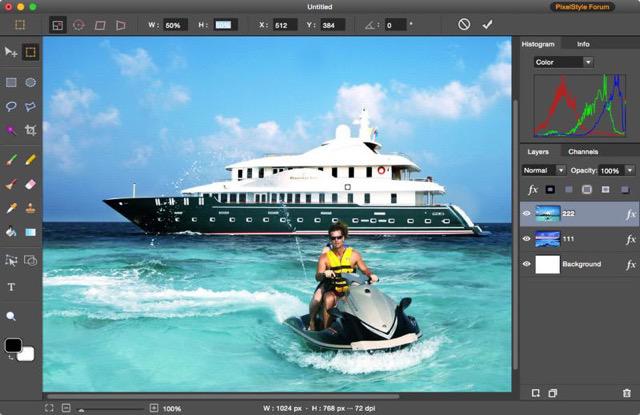
PixelStyle puts real margins and pixel-wide strokes on the Mac
A browser frame is a quick, good-looking edge, and for a listing photo or a forum post that is all you need. The moment the number matters — a print lab that wants a 40-pixel white margin, a template that specifies a two-point stroke, a branded frame saved as a PNG — the canvas itself has to grow, and that means a layered desktop editor. PixelStyle Photo Editor treats the border as a layer effect rather than a preset: draw the shape, give it a stroke of any width, and the original photo stays underneath, editable, on its own layer.
- Non-destructive layer effects including strokes, shadows, fills and both glows
- Layers and masks, so a border sits above the photo without flattening it
- Canvas that can be enlarged to leave a true white margin around the picture
- Opens HEIC, RAW, PSD and TIFF; exports WebP, TIFF, PNG and JPEG
Requires macOS · 7-day free trial · or download on the Mac App Store
Frame questions people ask first
Short answers that match what the editor on this site really does.
Does adding a frame change the image dimensions?
No. The border is drawn inside the edges of the picture, so the exported file keeps exactly the same width and height as the original. The trade-off is that a sliver of the photo sits underneath the band, which is why faces and text should stay away from the very edge of the frame.
Can I set the border to an exact pixel width?
Not in this tool. Thickness is a percentage of the picture, so it scales with the image instead of staying at a fixed number of pixels. When a printer, a template or a client asks for an exact width, set it in a desktop editor where a stroke takes a pixel value.
Is the Polaroid style a real white margin?
It is a wide white band with a heavier bottom, drawn over the outer edge of the photo. It looks like an instant print, but it does not add canvas, so the picture underneath is partly covered. A margin that keeps every pixel requires a larger canvas.
Will my original photo be modified?
No. The file is read into the browser, the preview is drawn on a canvas, and nothing is written back. A frame becomes permanent only in the new copy you download, and the original on your disk keeps its old name and its old bytes.
Can I wrap my own PNG frame or logo around the picture?
No. This editor offers the built-in styles only and has no image overlay or layer stack, so a branded frame cannot be dropped in. A PNG frame on its own layer is a desktop job.
Does the border survive a WebP export?
Yes. The frame is rendered into the pixels before the file is written, so the WebP copy looks identical to the JPEG one, usually at a smaller file size. Choose PNG instead if you need to reuse the result as a transparent intermediate.