Free · No sign-up · Nothing leaves your browser
Add a Watermark to a Photo Online — Free Text Watermark
Typing a watermark takes about a minute: open the photo, pick the text tool, type the name, studio or domain that should follow the picture, drag it where it belongs and export a copy. The work happens inside your browser, so the file is never uploaded and nothing is kept on a server — which matters when the image is a client proof, a scanned document or something you would rather not hand to a random upload form. What this page will not do is drop a finished logo file onto the picture; that is a desktop job and there is an honest note about it further down. Read the placement advice first, because a mark in the wrong place is worse than no mark at all.
- No watermark added to your export
- JPG, PNG and WebP out
- Mac, Windows, Chromebook, iPad
- No account, no install
How to add a watermark to a photo in four steps
One minute from a file on your desktop to a marked copy you can send.
-
Open the picture
Click Open, drag the file onto the canvas, or press Cmd+V after copying it from Finder. JPG, PNG, WebP, GIF and BMP all open, and the browser decodes the file locally instead of sending it anywhere.
-
Type the mark
Choose the Text tool and type the shortest line that still identifies you: a name, a studio, a domain, a year. A full legal name plus an address is the classic mistake — to stay readable it has to be so large that it covers the subject.
-
Place it, size it, colour it
Drag the text box into a corner, then pull a handle to scale it. White or light grey reads on most photographs; a thin rectangle behind the text helps when the corner of the frame is bright sky. If the picture is likely to be cropped, repeat the same text in the opposite corner as a second text block.
-
Export a copy
Press Save and choose JPEG for photographs, PNG when you want crisp edges on flat colour, or WebP when the file has to be small. The original file on your disk is untouched, so a clean version always stays available.

What this editor can and cannot do with a watermark
Being precise here saves five minutes of hunting for a button that does not exist.
Text marks, not logo files
A typed wordmark, a copyright line, a handle or a URL all work. A transparent PNG logo does not — there is no tool for placing an image on the photo in the browser version.
Freehand placement
Move and resize the text anywhere on the canvas and add as many text blocks as you want, so a four-corner repeat is simply four text blocks with the same wording.
No opacity slider
Text has a colour but no separate transparency control. A light grey shade or a smaller font size is how you keep a mark quiet without covering the photograph.
One photo at a time
There is no folder queue. For a single proof, a listing photo or a screenshot this beats launching a desktop app; for fifty files it does not.
Where a typed watermark is the right tool
Cases where the goal is "this is mine", not "this is impossible to remove".
- Client proofsSend a marked preview and hold the clean file until the invoice clears. Centre placement is the usual choice because it survives any crop the client makes before forwarding it on.
- Marketplace listingsA domain in the bottom-right corner does discourage the resellers who lift photos of furniture, bikes and consoles straight out of classifieds.
- Draft layoutsType DRAFT across the middle of a review image so nobody mistakes a comp for final artwork and ships it to print.
- Public screenshotsPut a handle under a tutorial screenshot and the source travels with the picture when it gets reposted elsewhere.
When a typed line is not enough
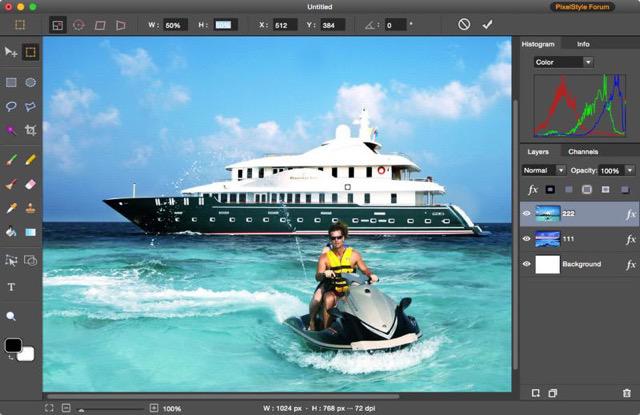
PixelStyle keeps the watermark on its own layer
In the browser the text becomes part of the exported picture, so changing the mark later means redoing the photo. PixelStyle Photo Editor on the Mac keeps every element on a separate layer: the watermark can be hidden, moved or replaced at any point before the final save, and a transparent logo file can be placed as a layer of its own.
- Watermark on a layer that can be toggled or edited later
- Place a transparent PNG logo instead of typing a wordmark
- Layers, masks, 50+ filters, healing brush and clone stamp
- Saves PSD, TIFF, JPG, PNG and WebP
Requires macOS · 7-day free trial · or download the .dmg
Watermark questions, answered plainly
Short answers, all checkable in the editor itself.
Does this tool add its own watermark to my file?
No. Nothing is stamped that you did not type yourself — no account name, no logo, no banner at export. What sits on the canvas is what lands in the downloaded file.
Can I use my logo image instead of text?
Not in the browser version. The text tool accepts typed characters only, so a PNG logo cannot be placed on the photo. PixelStyle on the Mac can put a transparent logo on its own layer above the image.
Can I make the watermark semi-transparent?
There is no opacity control for text here. Use a light grey colour, a smaller font size, or place the line over an area of the photo with little detail, and the mark sits back without blocking the picture.
Is the photo uploaded anywhere?
No. The image is decoded and drawn on a canvas inside the tab, so it never travels to EffectMatrix or a third party. Closing the tab throws the working copy away.
Can I watermark several photos at once?
No, one photo is open at a time. If the same mark has to go onto a whole folder every week, a Mac app with layers and a saved template is the better tool for that job.
Which format should I export?
JPEG for ordinary photographs, PNG when the picture is mostly flat colour or you want sharp text edges, and WebP when the file must be small for a web page. All three keep the watermark you placed.