Free · Runs in your browser · No account
Hide a Face in a Photo Online — Before You Post It
Somewhere in the picture you are about to publish there is a person who never agreed to be in it: the neighbour behind the delivery, the stranger crossing the frame, the child in a listing photo. Hiding that face is not a graphics problem, it is a decision about how much of a person is yours to show. This free browser editor gives you a redact tool and a filled rectangle to do it with, works on the file locally, and exports a flat image with the face genuinely gone from the pixels.
- Pixelate, blur or solid cover
- Nothing uploaded
- No watermark, no sign-up
- Works on phone and desktop
How to hide a face in a photo
Decide what has to go, cover it, check it zoomed in, save a copy. Four steps, no account.
-
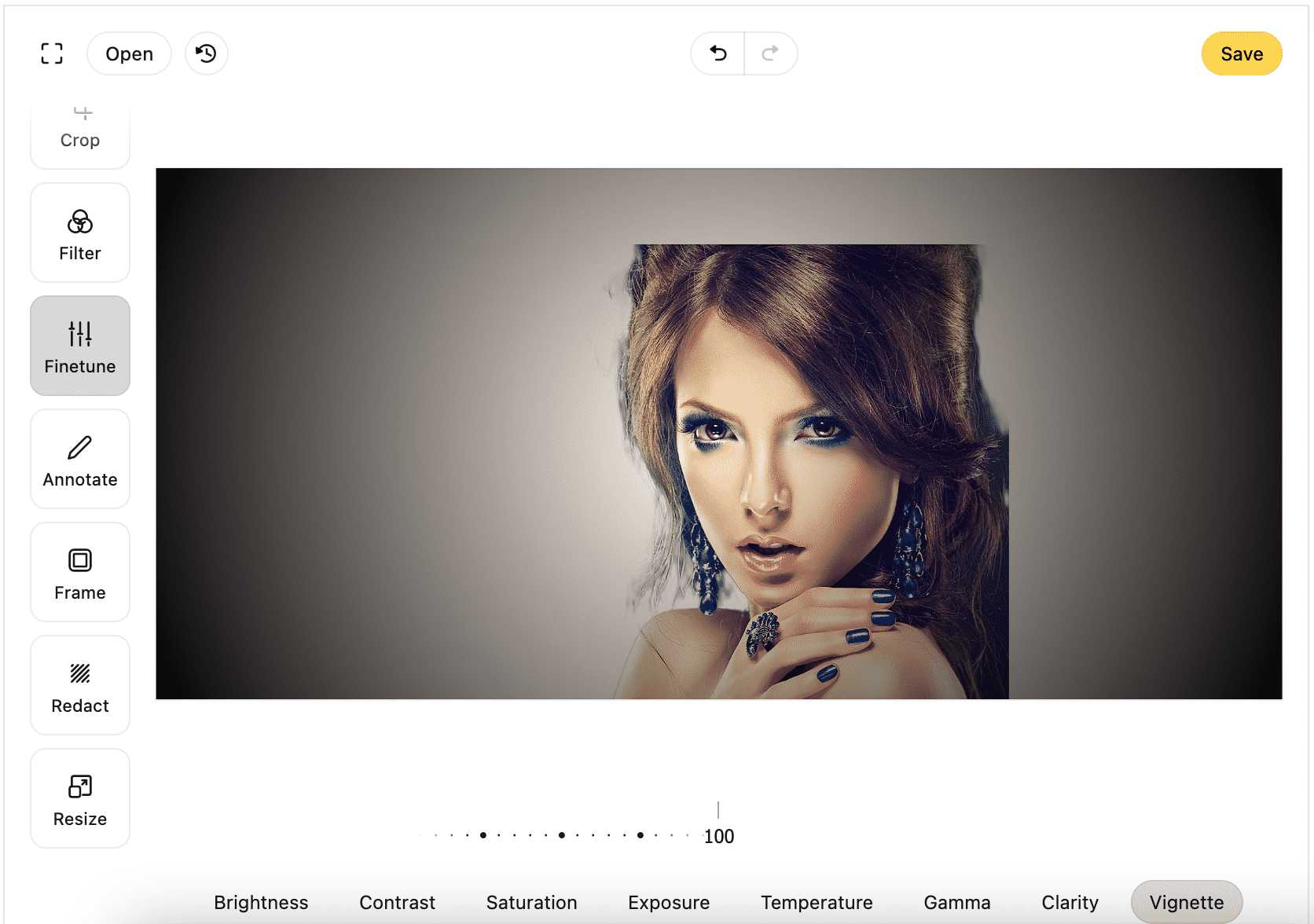
Open the photo you are about to publish
Click Open or drop the file on the canvas. Work on the export, not on your only copy: the editor reads the file and never writes back to it, so the original on your disk stays exactly as it was.
-
Decide what to remove, face or identity
If the person should be unrecognisable, pixelate with a coarse block or cover the face with a filled shape. If the picture only needs the person to be less prominent — a crowd shot, a queue — a softer blur is enough and keeps the image looking natural.
-
Drag one box per face, then check closely
Choose the redact tool and pull a box from corner to corner. Zoom in on the result afterwards: a cover that reads as solid at thumbnail size can leave an eye or a jawline showing at full resolution, and that sliver is often enough to identify someone.
-
Sweep for the second-hand clues, then save
A name badge, a lanyard, a work shirt, a reflection in the window or a street sign can undo a perfect face cover. Fix those with the same tool, then press Save and download as PNG or JPG.
Which method actually hides someone
The three options look similar in a preview and behave very differently once the file is out in the world.
Pixelation with big blocks
Pixelation replaces a region with blocks of one average colour. The bigger the blocks, the less of the face survives: a coarse setting leaves a shape and nothing you could compare with a photo of that person. This is the default choice when the point is anonymity rather than tidiness.
A soft blur is for context, not secrecy
A gentle blur keeps the outline of a head, the tilt of a jaw and the tone of the skin. That is enough to make a picture feel considerate and not always enough to make a person unidentifiable. Treat blur as a courtesy and pixelation as the actual cover.
A filled patch is the certain answer
Draw a rectangle with a solid fill in a colour from the photo — dark grey on a dark room, sand on a beach — and nothing underneath can be recovered, because nothing underneath is exported. It looks blunter than a blur, which is exactly the trade being made.
Cover the frame, not just the face
A face is not the only identifier in a photo. Wrists, hands with a tattoo, a phone screen, a school badge, the number on a door across the street: all of them link a picture to a person. A good pass at the image means looking away from the face once it is covered.
Photos that need a face covered
Four everyday situations where the picture is worth posting and the people in it are not.
- Complaints and claim evidenceMould on a wall, a dented parcel, a queue that never moved. The photo proves the point; the staff member in the corner of the frame did not ask to be part of your case. Cover them and the evidence still stands.
- Listings with people in the frameA flat to rent with family photos on the shelf, a used stroller photographed with a toddler nearby, a bike leaning against a wall with the owner's reflection in a window. Buyers need the object, not the household.
- Street and event picturesCrowds, markets, festivals and station platforms are full of faces that belong to strangers. If a shot is going on a blog or a company page, cover the people who are clearly incidental to the scene.
- Posts about another personScreenshots of a profile, a group photo from a party, a message thread used as an example. When someone asks not to appear, or simply has not been asked, hiding the face is the least you can do before hitting publish.
When redaction is a workflow, not a one-off
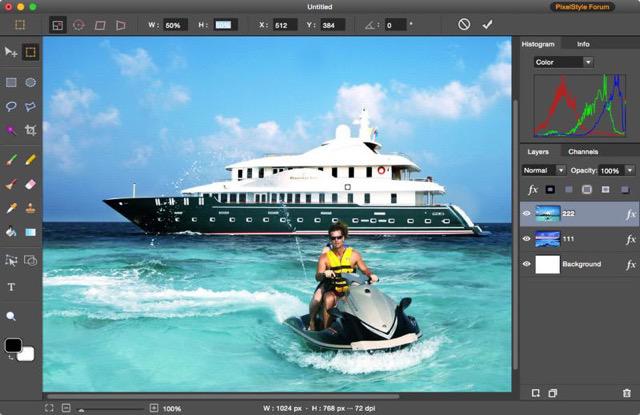
PixelStyle Photo Editor keeps the cover on its own layer
One photo, one face, one download: the browser tool is the quickest path and needs nothing installed. Handling a folder of listing photos every week is where a desktop editor pays for itself. In PixelStyle the pixelation sits on a mask above the untouched photo, so the original is still there when a client asks for the unredacted version, and a wrong box is an adjustment rather than a redo from the original file.
- Blur or pixelate through a mask, with the clean photo preserved on the layer below
- Clone stamp and healing brush for the cases where a detail should disappear instead of being covered
- Layers, masks and non-destructive filters, so nothing is merged until export
- AI Auto Segmentation to isolate a person quickly, and AI Background Remover to replace what is behind them
Requires macOS · 7-day free trial · or download on the Mac App Store
Questions about hiding a face
Short answers, including the uncomfortable one about whether a blur really protects anyone.
Is a pixelated face truly unrecognisable?
It depends on the block size. A fine pixelation is little better than a blur and leaves proportions readable, while a coarse one destroys the features entirely. If the person must not be identified, use large blocks or a solid patch rather than a light treatment.
Should I use a blur or a black box?
A blur keeps the photo looking like a photo and is the friendlier choice for a crowd or a background face. A solid patch is the safer choice for anything sensitive, because there is no detail left to recover — the exported pixels simply are not there.
Can I hide several faces in one picture?
Yes. Draw a box for each face, one at a time, and use the same strength on all of them so the result looks deliberate. If one person needs a solid cover and the rest a blur, that is allowed too — the tool treats each box independently.
Does the tool remove the face from my file, or only cover it on screen?
The cover is written into the exported image before the download starts. What you save is a flat picture with the face already covered, and there is no hidden original underneath. The file on your own disk is not touched at all, so you keep an unredacted copy for your records.
Is the photo uploaded to a server to do this?
No. The editor runs in the browser and processes the image with the HTML canvas, so it stays on your own device. That matters here in particular, since the reason for covering a face is usually that the picture is sensitive.
Can I hide faces on a phone, or in a video?
A phone is fine — the editor runs in a mobile browser and the redact tool works with a finger. Video is out of scope: the editor handles still images. For a clip, export a frame, cover what needs covering, and edit the video in a desktop tool if a moving cover is required.