Free · No install · Mirrors in your browser
Flip Image Online Free — Mirror a Photo in One Click
Flipping a photo swaps it along an axis: a horizontal mirror puts the left side on the right, a vertical flip turns it upside down. The usual reason people need it is a front camera that saved the scene the way the lens saw it rather than the way the mirror did, so a T-shirt slogan reads backwards. Open the picture, pick the axis, check the details that mirroring reverses, and download a fresh copy. The work happens in your browser, so nothing is uploaded and no account is involved.
- Free, no watermark
- One click per axis
- Files stay on your device
- Mac, Windows, iPhone & Android
How to flip or mirror an image online
The flip itself takes one click. Deciding whether you want it, and checking what it broke, takes longer.
-
Load the picture
Click Open, drag the file onto the canvas, or paste it straight from the clipboard. A screenshot copied with the system shortcut drops in without touching disk.
-
Choose an axis, not a button
Open the rotate panel and pick the horizontal mirror for a left-right swap, or the vertical one for top-bottom. Both axes in a row puts the picture where a half turn would, so there is no need to do it twice.
-
Read the details that just reversed
Zoom in on writing, number plates, shirt logos, jersey numbers and wedding-ring hands. Mirroring does not care what the text says, and a reversed brand name is the most common way a mirrored photo gets published by mistake.
-
Save a new copy
Press Save, then choose JPEG for photos, PNG if transparency matters, or WebP for the smallest file. Your original on disk is untouched; the download is a separate file.
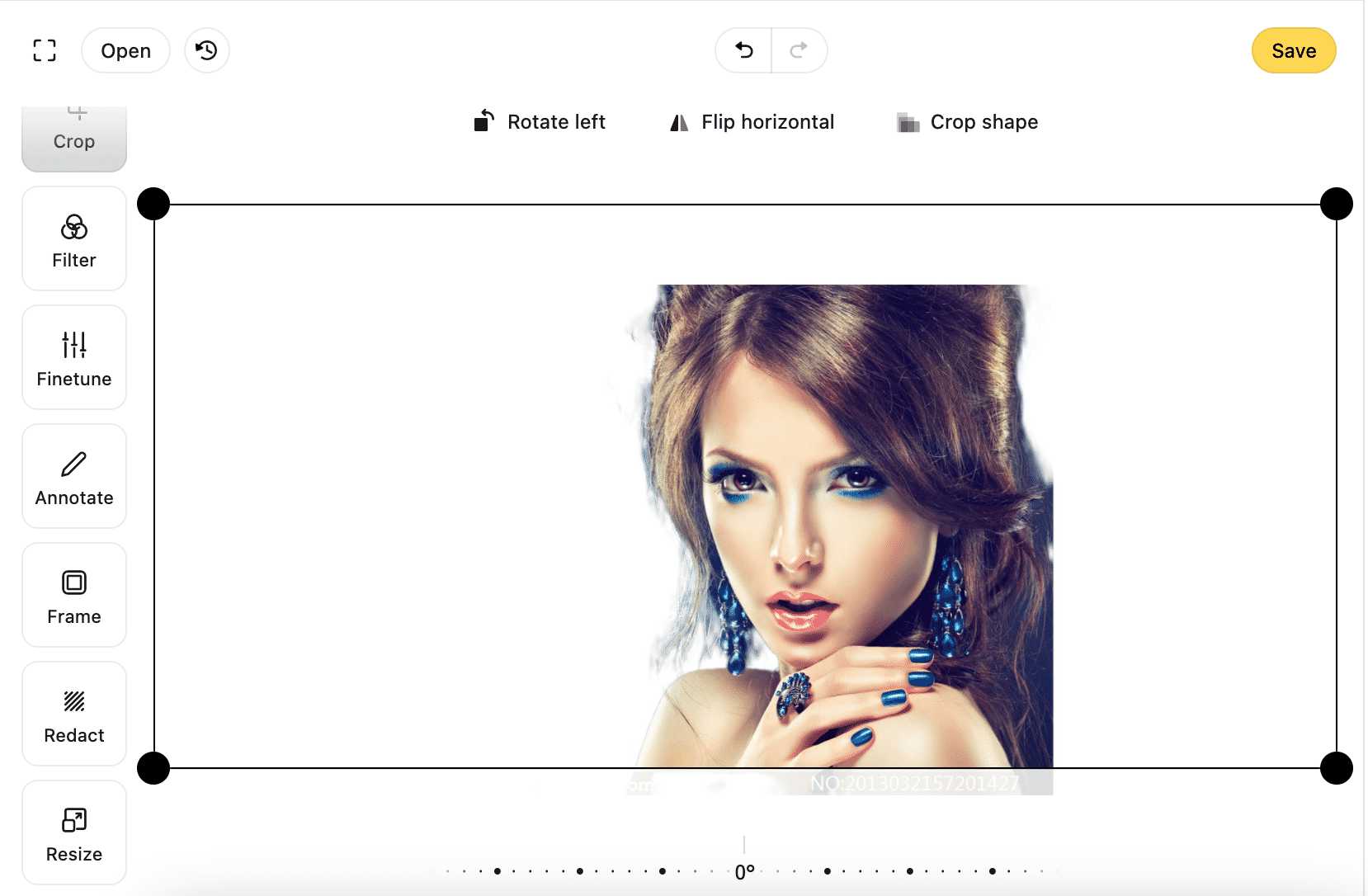
Two axes and three things they are good for
Mirroring is a pixel rearrangement, not a filter: the file keeps its dimensions, its colour and its sharpness, only the arrangement changes.
Horizontal mirror
Left becomes right. This is the fix for a front-camera selfie that looks wrong, and the standard step when a photo has to face the opposite direction to balance a layout.
Vertical flip
Top becomes bottom. Used for fake reflections under a product, for turning a scanned page the right way up, and for a quick sanity check on composition when a picture feels top-heavy.
What it costs in quality
Nothing measurable. The pixels are moved, not resampled, so no blur is introduced and the export is the same size as the import.
What it cannot do
Only the whole picture flips here. Flipping one lamp, one person or one text layer inside a composition needs separate objects, which is a layered document rather than a canvas.
Four situations where a mirror saves the shot
None of them are about effects. They are about matching what a person expected to see.
- Selfies from a front cameraThe preview you framed against was a mirror, the saved file is not. Mirroring brings the photo back in line with the face you approved before pressing the shutter.
- Tracing references and transfersArtwork that will be traced, screen printed or ironed onto fabric has to be reversed so it reads correctly once it is transferred. Flip, print, and the lettering lands the right way round.
- Balance in a layoutA subject looking out of the page pushes the eye off the edge. Mirroring turns the gaze inward, which is often all a two-column page or a slide needs.
- Side-by-side comparisonsComparing a haircut, a posture or a garment fit only works when both shots face the same way. Mirror the second one and the differences stop being an illusion of direction.
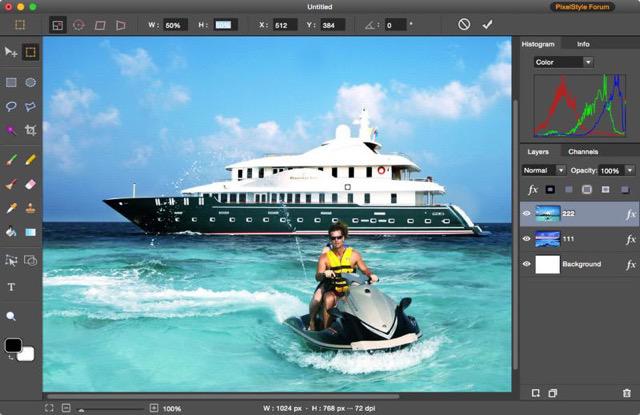
When only part of the picture should mirror
PixelStyle mirrors one layer and leaves the rest alone
A browser canvas has a single image on it, so a flip is all or nothing. Real retouching usually needs the opposite: move the reflection, keep the headline readable, leave the logo facing the right way. PixelStyle Photo Editor treats every element as its own layer on a Mac, so you can select several at once and transform them without touching the ones that must stay put.
- Flip, align and transform selected layers independently of the rest of the document
- Keep a text layer readable while the photo underneath is mirrored
- Masks, curves, levels and 50+ filters for the retouching that follows
- Opens HEIC, RAW, PSD and TIFF; AI Background Remover and 4X Super Resolution built in
Requires macOS · 7-day free trial · or download on the Mac App Store
Questions about mirroring images
The answers below match what the tool on this page does.
Does flipping an image lose quality?
No. A flip moves whole pixels to new positions instead of blending or resampling them, so the pixel count, the colour and the sharpness stay exactly as they were.
Why did the text in my photo come out backwards?
Because a mirror reverses the scene, and letters are part of the scene. Any writing, number plate, logo or jersey number in the frame will read the wrong way round after a horizontal flip. Zoom in before you download and decide whether that matters.
What is the difference between flipping and rotating?
Rotating turns the picture around its centre, so the top edge becomes the side edge and the frame changes orientation. Flipping swaps two sides and keeps the frame as it is. A mirrored photo cannot be un-mirrored by rotating it, which is why the two live in different controls.
Can I mirror just one object inside the photo?
Not in this browser editor. The canvas holds one image, so the flip applies to all of it. Mirroring a single object while the rest of the frame stays readable requires layers, which is what a desktop editor is for.
Does the tool modify my original file?
No. The editor works on a copy loaded in the browser tab, and downloading creates a new file in your downloads folder. The photo on your disk is never written to.
Which formats can I export after flipping?
JPEG, PNG and WebP. PNG keeps transparency through the flip, JPEG is the safest for sharing, and WebP gives the smallest file for a web page.