Free · No sign-up · Converted in your browser
Convert Image to WebP Online — Free, Nothing Uploaded
WebP is the format browsers ask for and a surprising number of older programs refuse to open. A single conversion usually cuts a photograph's weight by a quarter or more while leaving its width and height exactly as they were. This page takes a JPG, PNG, GIF or BMP that is already sitting on your disk, re-encodes it as WebP inside the browser tab, and hands back a file you can drop into a page, a template or a message. There is no upload queue, because nothing is uploaded at all. The boundary is stated just as plainly further down: WebP is not readable everywhere, and you should know which systems will choke on it before you replace anything.
- Quality slider from 0 to 100
- Transparency survives conversion
- Same pixel dimensions in and out
- No account, no watermark
How to convert an image to WebP
Four steps, and the second one is the one people skip. A format change alone rarely fixes a file that is too heavy.
-
Open the image
Click Open, drag the file onto the canvas or paste it from the clipboard. JPG, PNG, WebP, GIF and BMP are decoded by the browser itself, so the file is read from disk and never written back to it.
-
Fix the size before the format
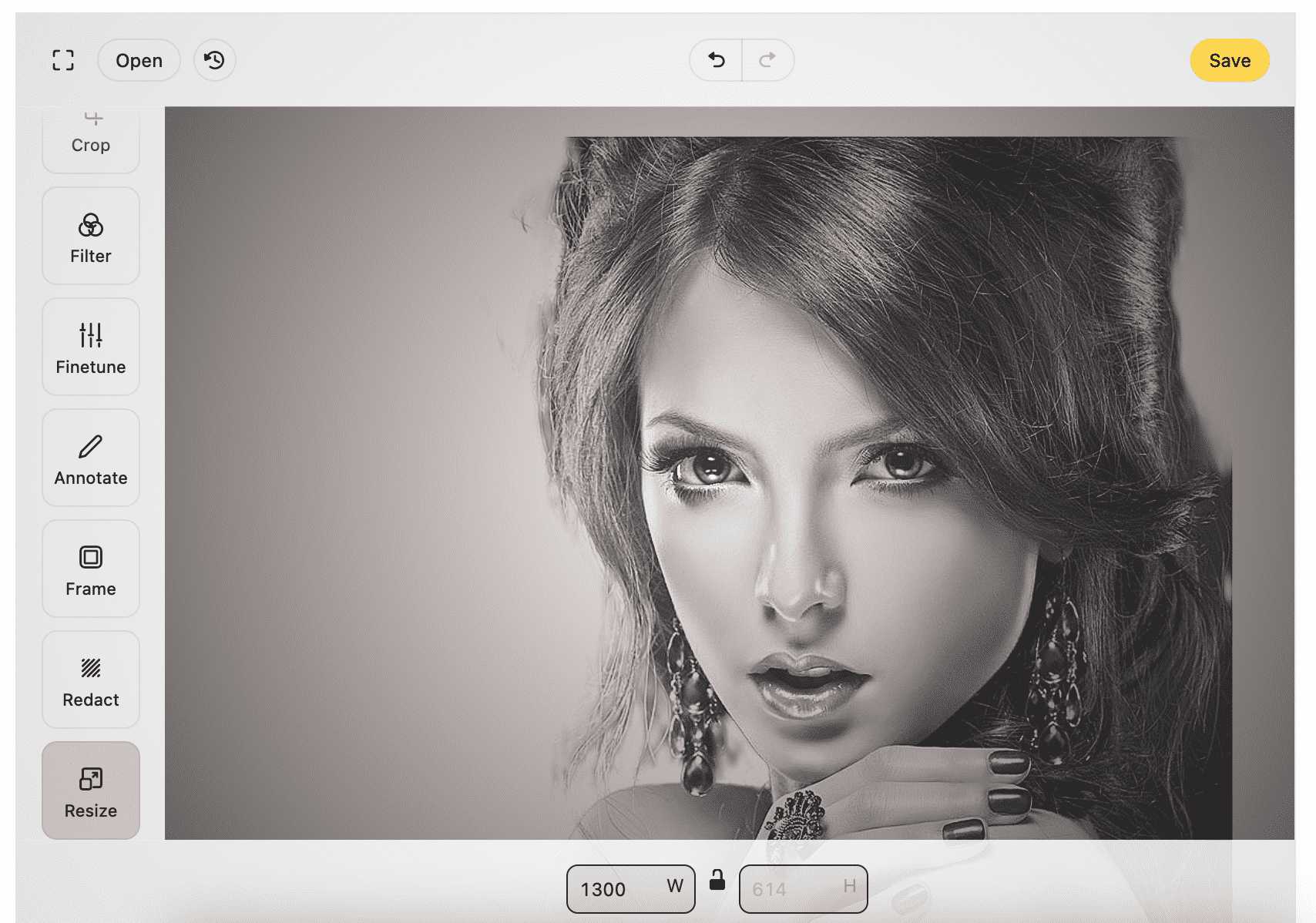
A 4000-pixel photo exported as WebP is still 4000 pixels wide. If the picture only ever appears in an 800-pixel column, go to the Resize tab first and set that width with the ratio locked. Halving both sides leaves a quarter of the pixels, and that move usually saves more bytes than the format switch does.
-
Choose WebP and set the quality
Press Save and pick WebP from the format list. The quality row runs from 0 to 100; the default keeps almost everything, and most photographs hold up around 80. Judge it by the preview rather than the number, because fine grain and small type are the first things to smear.
-
Put the two files side by side
The download lands in your downloads folder next to the untouched original. Open the file manager, compare the reported sizes, then open the WebP in a browser to confirm it looks right. Keep the original until the new file has been checked in the place it will actually live.
What a WebP conversion really changes
Four things worth knowing before you delete the file you started from.
Only the encoding
The width, the height and the framing stay exactly as they were. What changes is how those pixels are stored. WebP can encode either lossily or losslessly, and for photographs the lossy mode is the one that produces the smaller file.
Quality is a slider, not a guarantee
At 100 the encoder behaves almost like a lossless one and the result is often no smaller than the JPEG you began with. Between roughly 75 and 85 most photos look identical on a screen at full size. Below about 60, gradients in sky and skin begin to band and text starts to fuzz.
Transparency comes through
WebP carries an alpha channel, so a PNG with a cut-out background normally keeps its empty area. JPEG cannot do that at all, which is why turning a transparent logo into a JPEG surrounds it with a white box that ruins it on a coloured page.
Every generation costs a little
A conversion decodes the picture and encodes it again. Going JPG to WebP to JPG stacks two lossy passes on the same pixels, so keep the file that came out of the camera or the design tool and convert from that copy each time.
Where WebP pays for itself
Four situations where the same picture, stored differently, does measurable good.
- Content images on a siteThe browser downloads every byte before it can paint, and photographs are usually the heaviest thing on the page. A gallery converted at quality 80 commonly sheds a third of its weight, which is time back on a phone connection.
- Blogs and portfoliosA photo essay with twenty images is where a format change turns into a faster first paint. Readers on mobile data notice a page that opens in two seconds and leave one that takes six.
- Documentation and wikisScreenshots that contain photographs of interfaces compress badly as PNG and well as WebP. Old captures kept only for reference are also fair game for a lower quality than the ones embedded in a live article.
- Sending a proof instead of a masterA client preview does not need to be a six-megabyte JPEG. Converted at a moderate quality it opens instantly in any current browser, while the full-resolution file stays where it always was.
When the source file will not even open
PixelStyle converts what a browser cannot decode
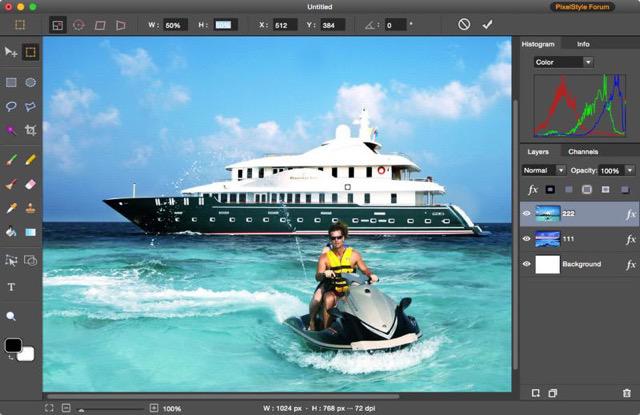
There is one case this page cannot touch: the file itself. An iPhone photo arrives as HEIC, a camera card holds RAW, a scanner writes TIFF, and a browser refuses all three, so no conversion can begin. PixelStyle Photo Editor opens HEIC, RAW, TIFF, PSD, PDF and SVG on the Mac, lets you correct exposure with curves and levels before anything is exported, and writes WebP, JPEG, PNG, TIFF or JP2 from the same window. Because the picture stays in layers, a design can be re-exported at another size later without being rebuilt. Everything runs offline, with no upload step anywhere in the chain.
- Opens HEIC, RAW, TIFF, PSD, PDF and SVG files
- Exports WebP alongside JPEG, PNG, TIFF and JP2
- Layers, masks and text stay editable for the next export
- Works offline on the Mac, with no browser involved
Requires macOS · 7-day free trial · or download on the Mac App Store
WebP questions people ask first
Short answers, including the ones that talk you out of converting.
Does converting to WebP make the picture worse?
It can, because the common WebP path is lossy: the encoder drops fine detail to save bytes. At quality 100 almost nothing is discarded and the file is often no smaller than the JPEG you started with. Around 80 the loss is normally invisible on screen, and that is the setting to try first.
Where will a WebP file fail to open?
Safari reads WebP from version 14 onwards, and so do Chrome, Firefox and Edge, plus Windows 11 and current macOS. It is older Safari on a Mac or iPhone that never got updated, older releases of Word and PowerPoint, some print shops, and marketplace or government upload forms that still demand JPG or PNG. When any of those sit in the path, export a JPEG as well.
Why did my WebP come out larger than the JPG?
Usually because the source was already compressed hard, or because the image is a flat graphic such as a screenshot of text, a logo or a chart, where PNG is the better fit. Re-encoding at quality 100 inflates the result too. Try a lower quality, or simply keep the original format.
Does the conversion change the dimensions?
No. WebP uses the same pixel grid as the file it came from, so a 3000-pixel-wide photo stays 3000 pixels wide and only the byte count moves. If the dimension is what needs fixing, change it first with the resize tool and convert afterwards.
Is my file uploaded to a server?
No. The image is decoded into a canvas inside the tab and re-encoded there. EffectMatrix never receives a copy, which is also why the page keeps working if the connection drops after it has loaded.
Can I turn a WebP back into a JPG here?
Yes. A WebP opens like any other image and can be saved as JPEG or PNG. Remember that this is a second lossy pass over an already compressed picture, so convert from the original whenever that original still exists.